Welcome, WallGlass.
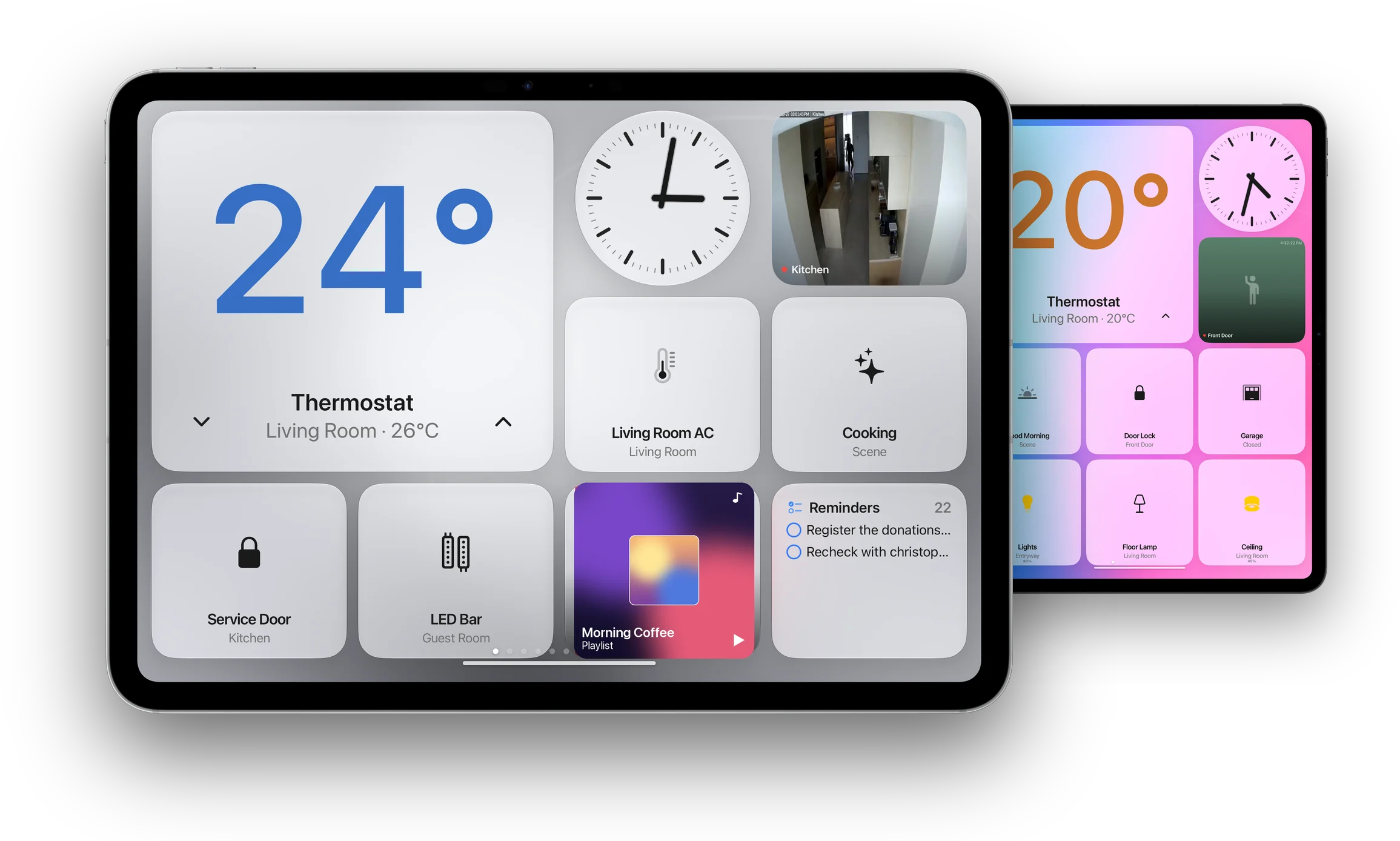
Your iPad. Now the heart of your home. One dashboard for every light, lock, thermostat and camera, always on the wall.
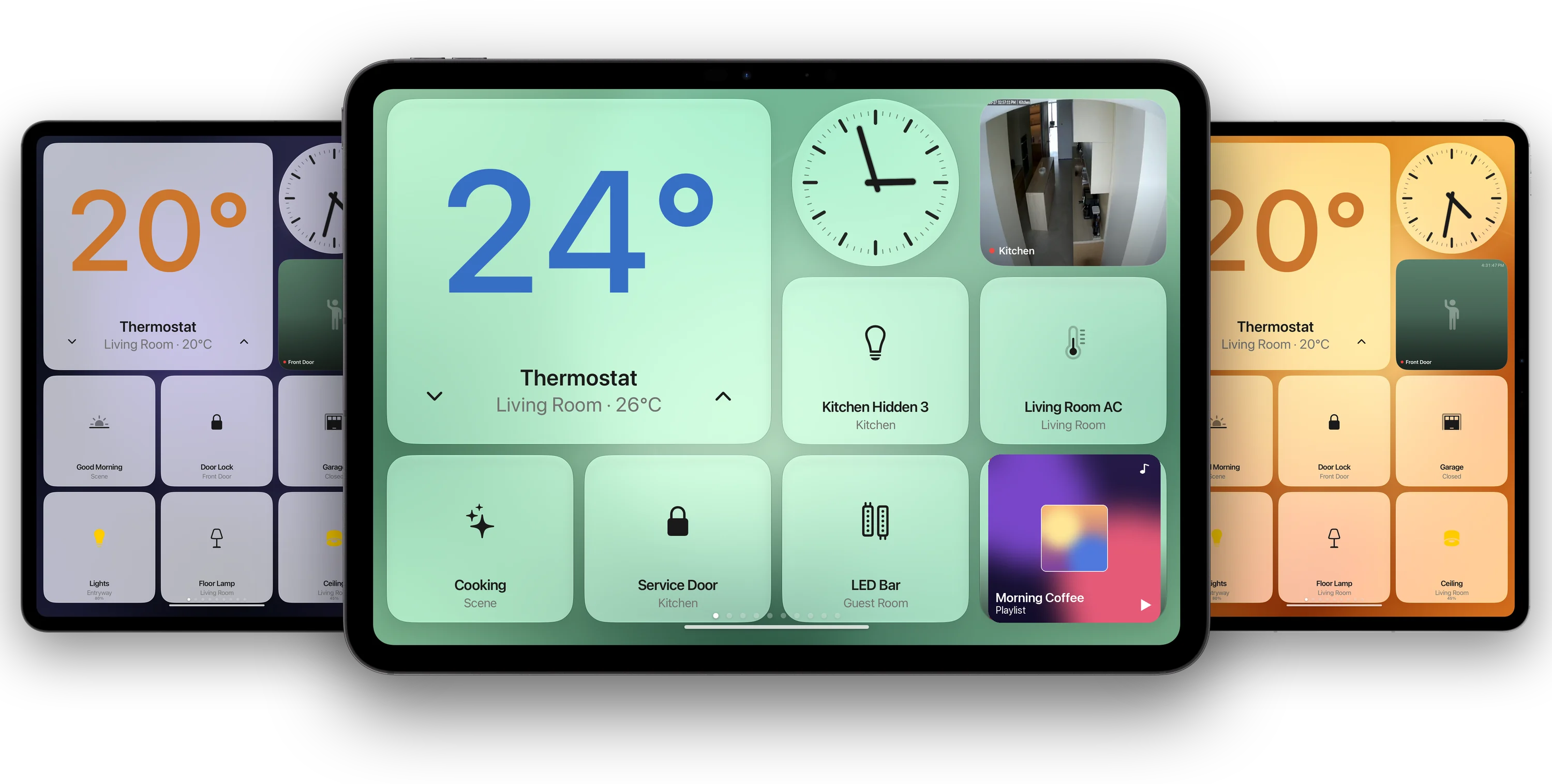
The new heart of your home.
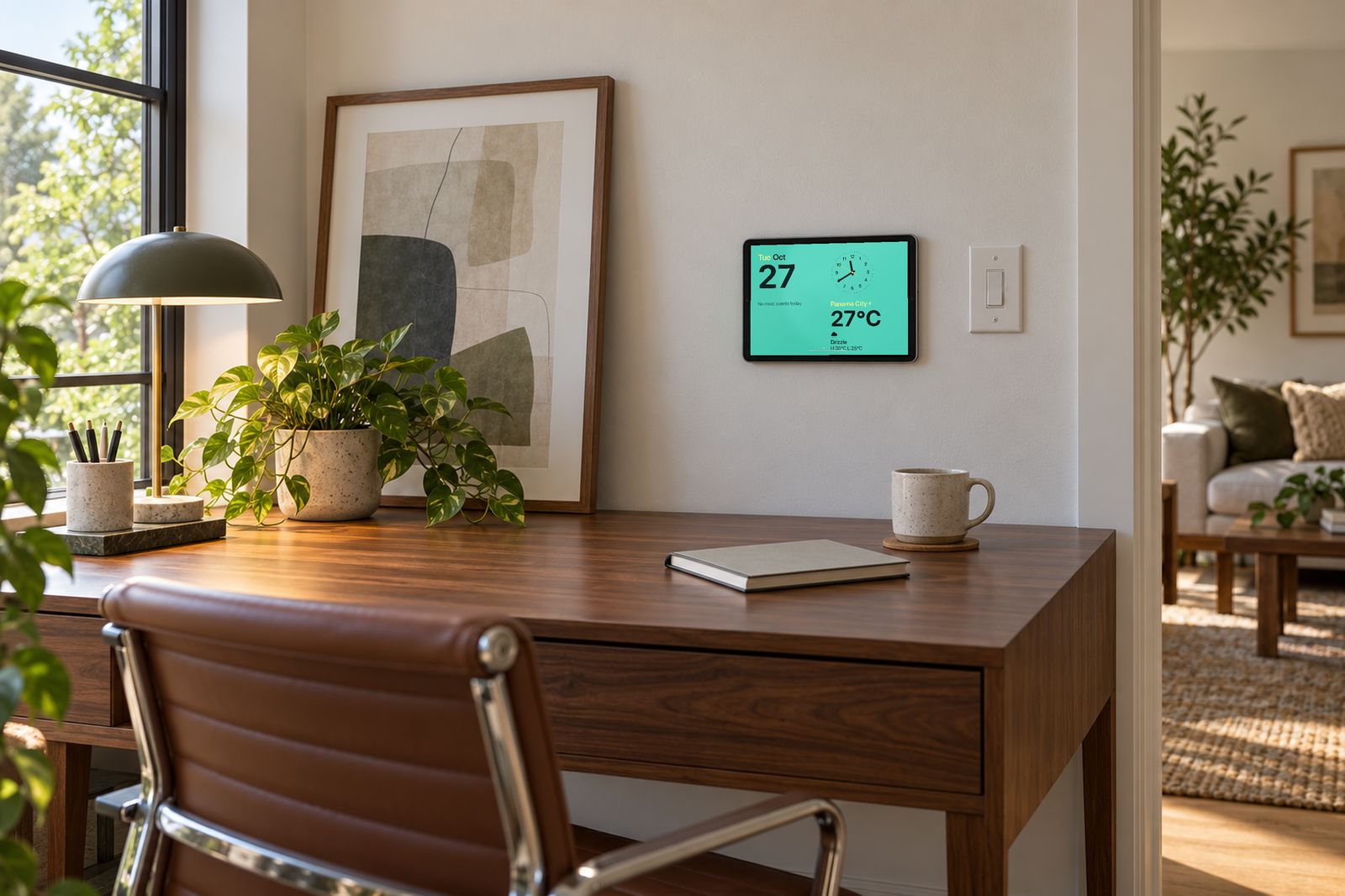
Built from the iPad you already own. Hang it in the kitchen, the hallway or by the bed, and it stays awake, dims at night and shows what matters.
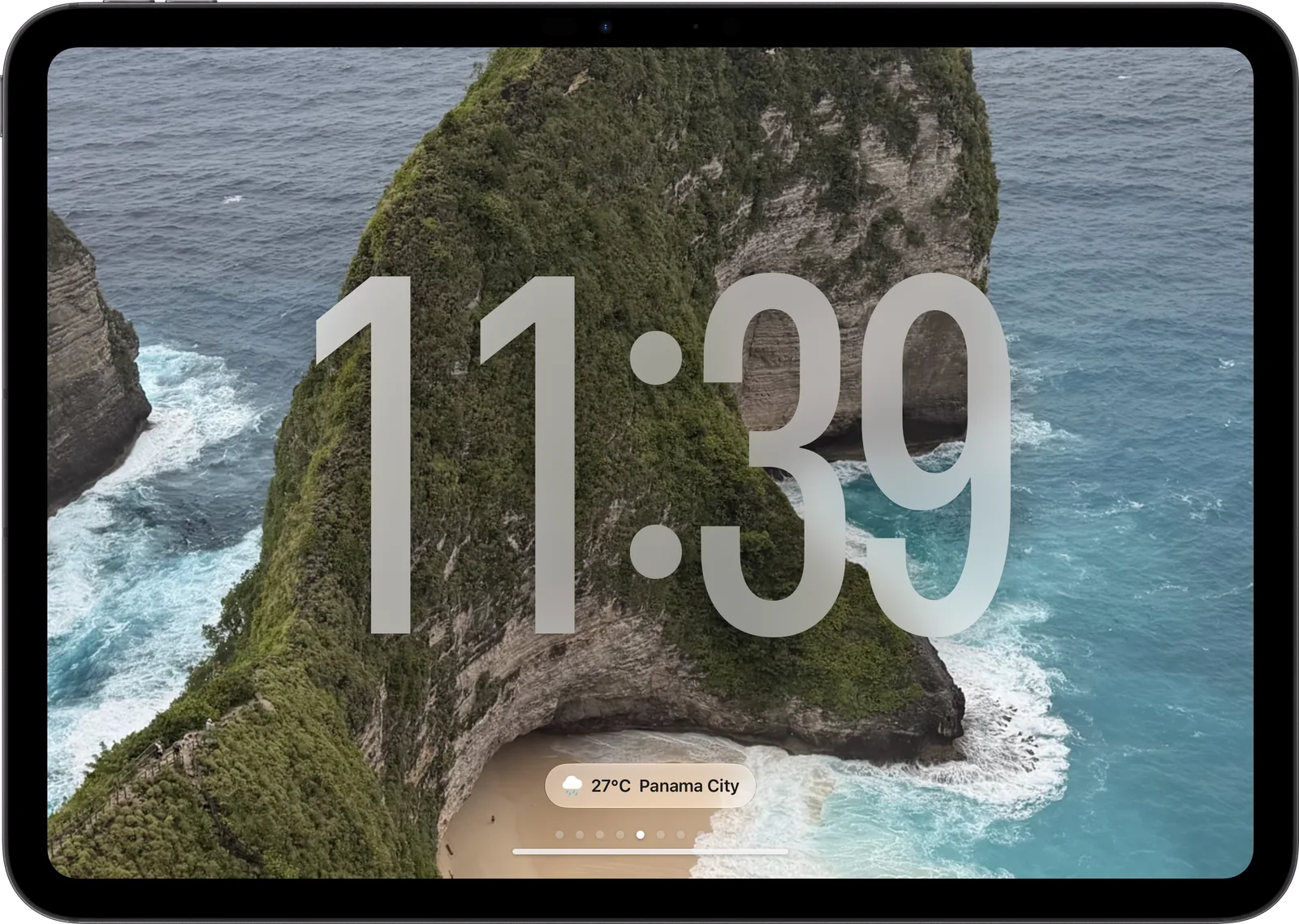
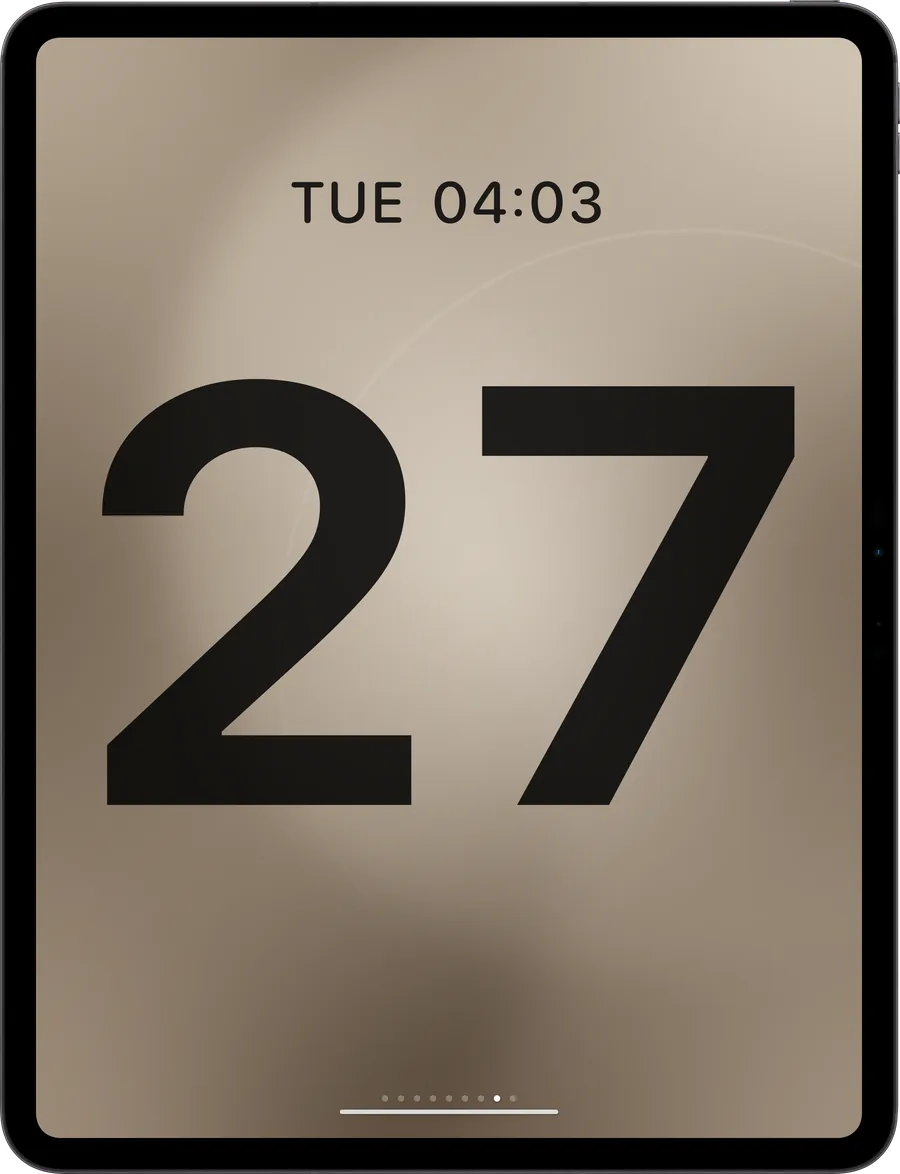
A perfect face for any space.
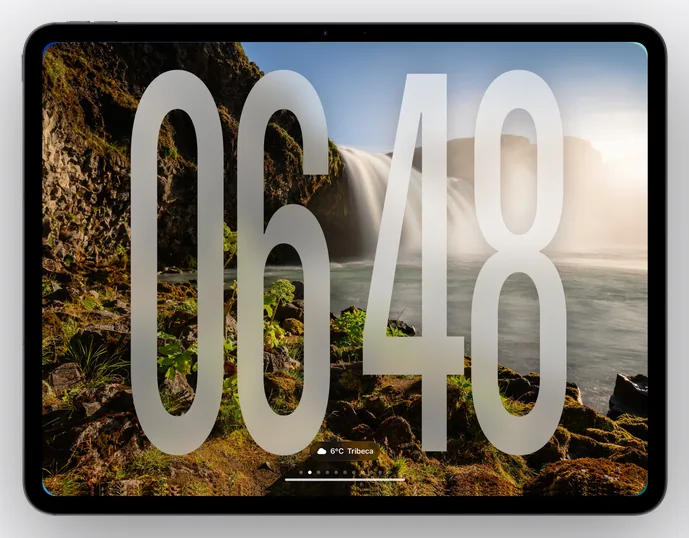
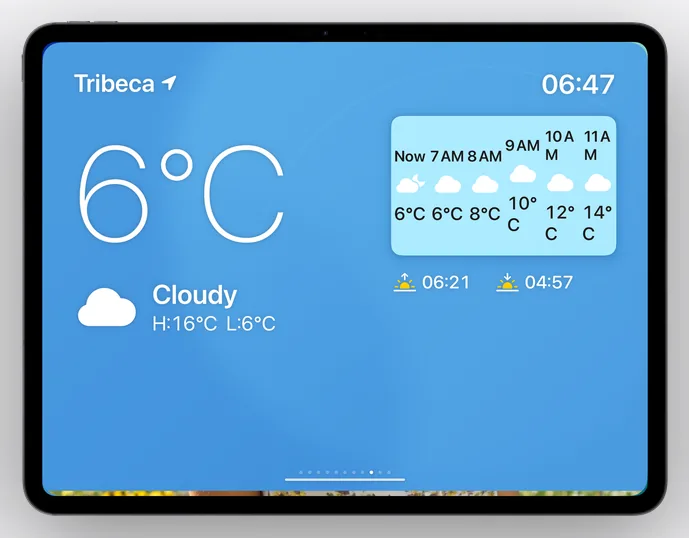
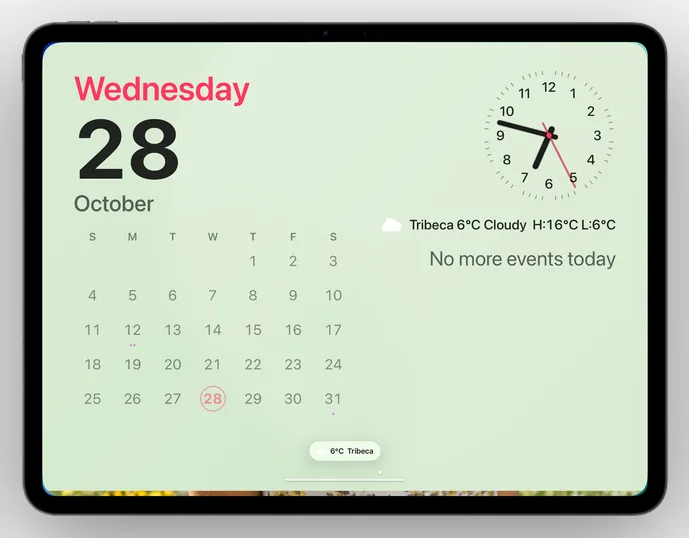
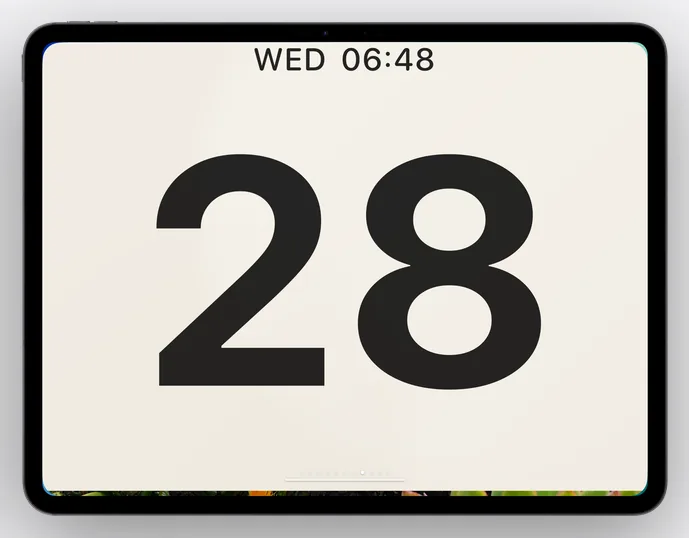
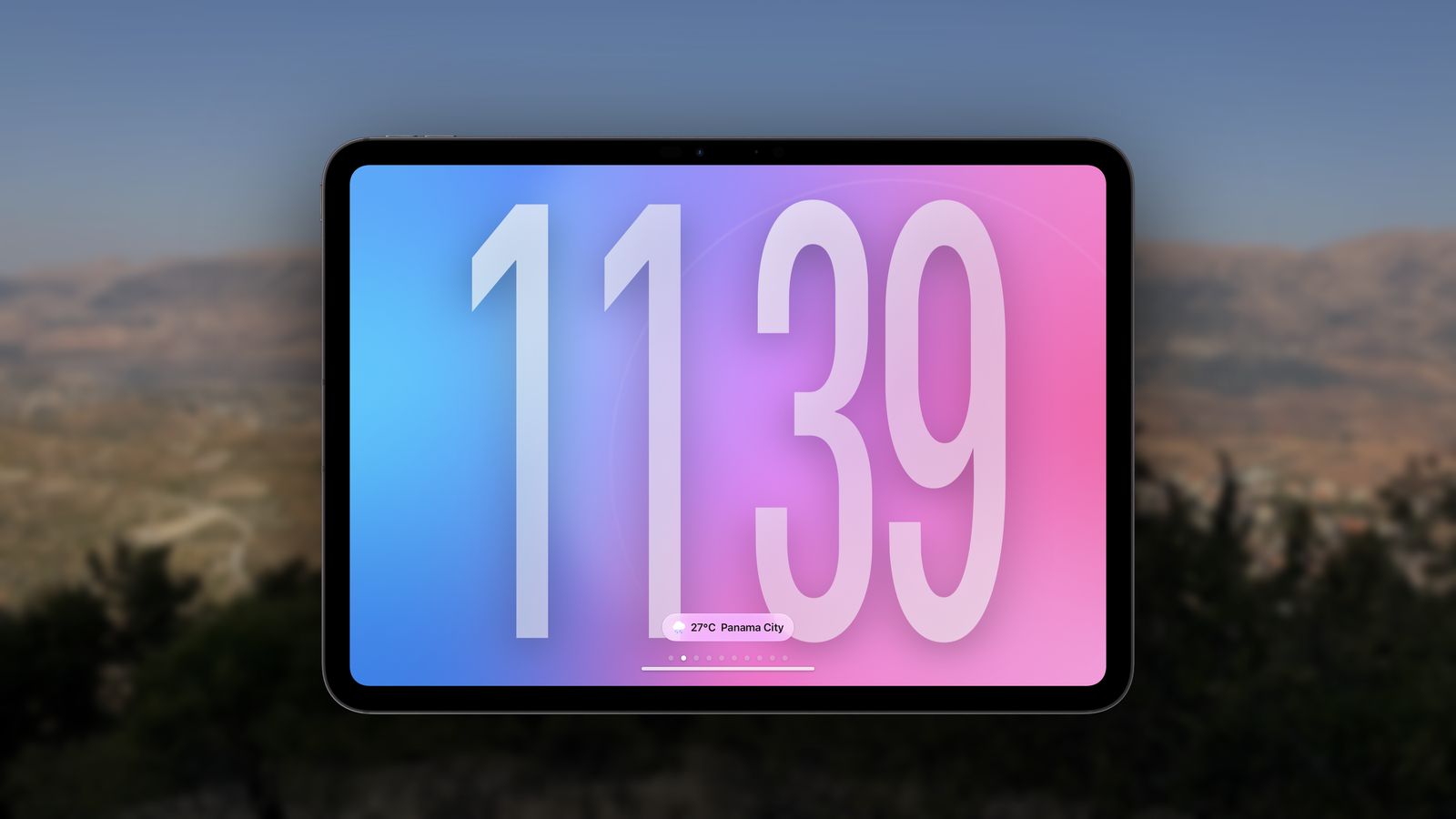
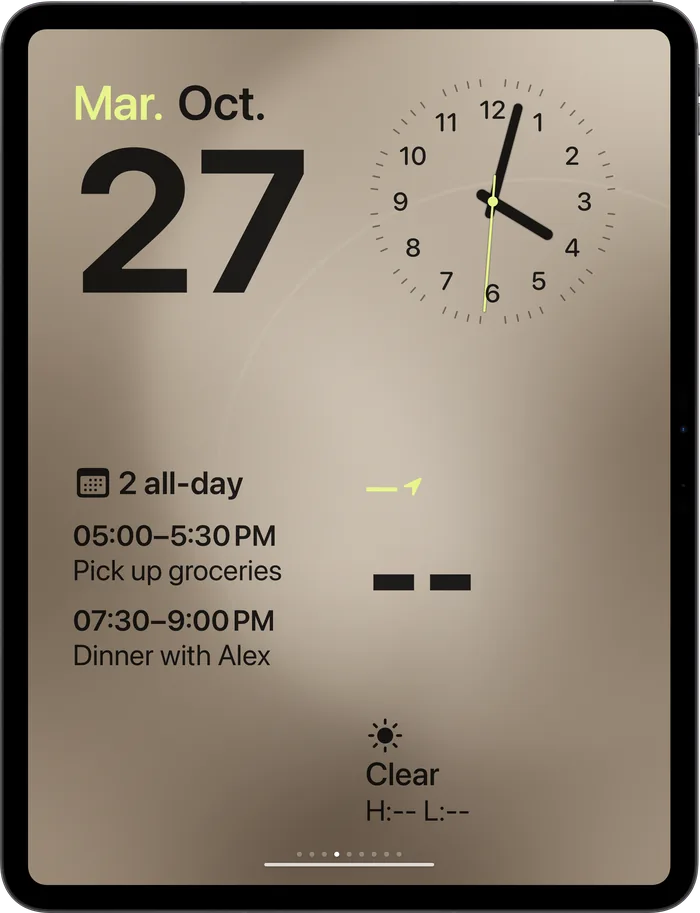
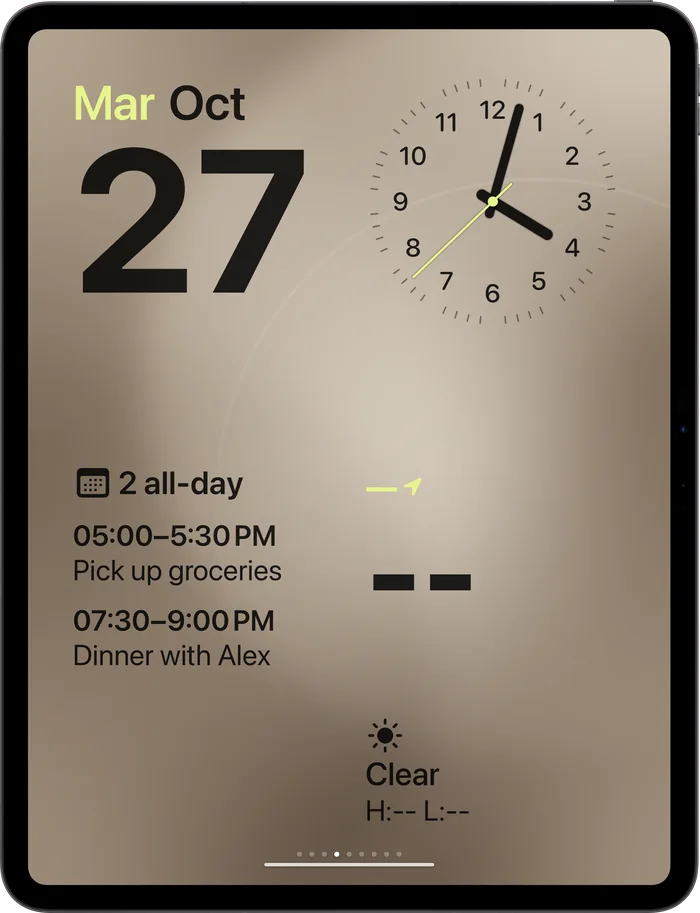
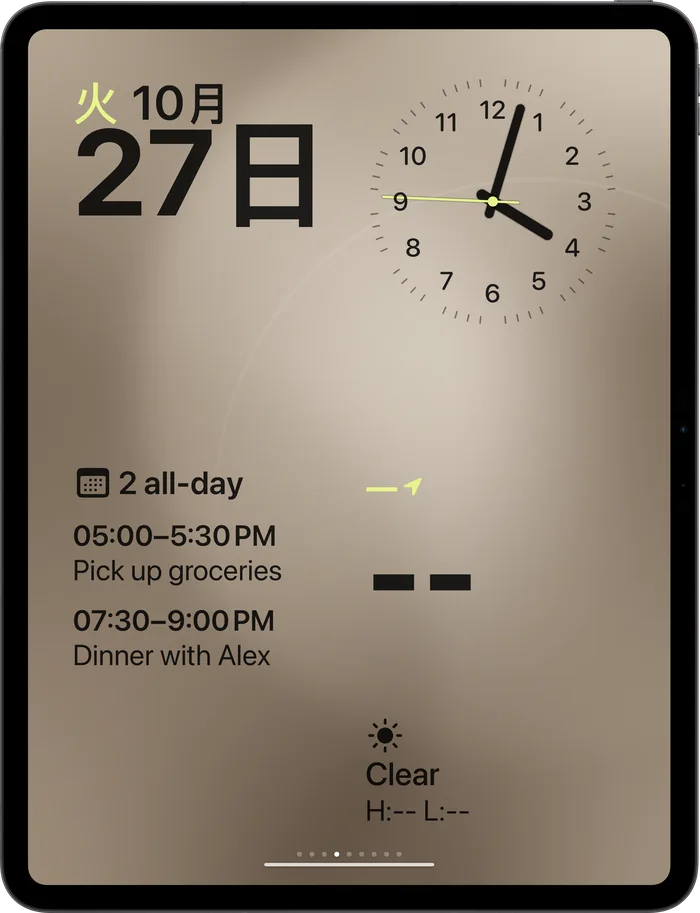
Eleven clock faces plus your own photos and albums. Pick one per room, change it with a long press.
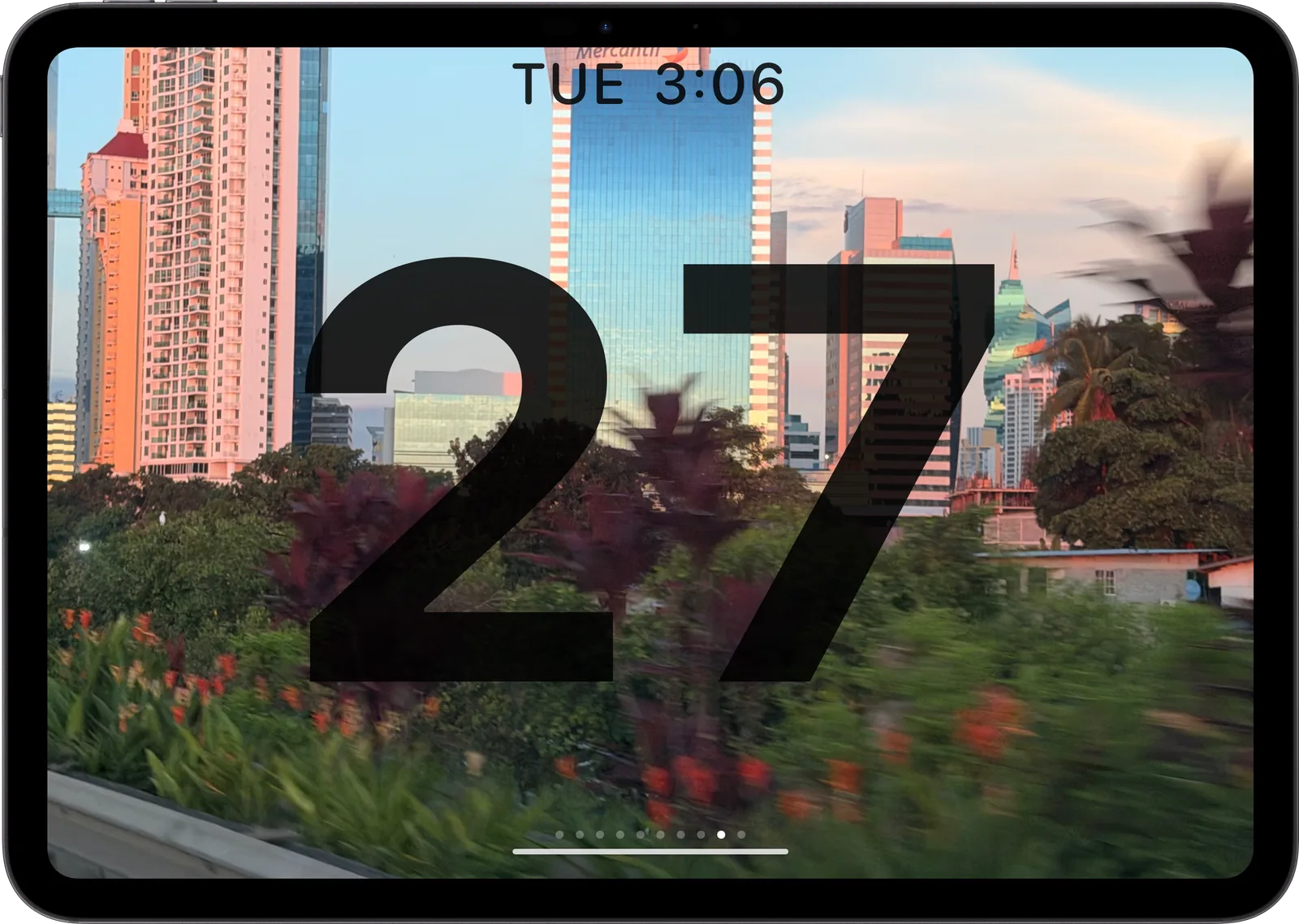
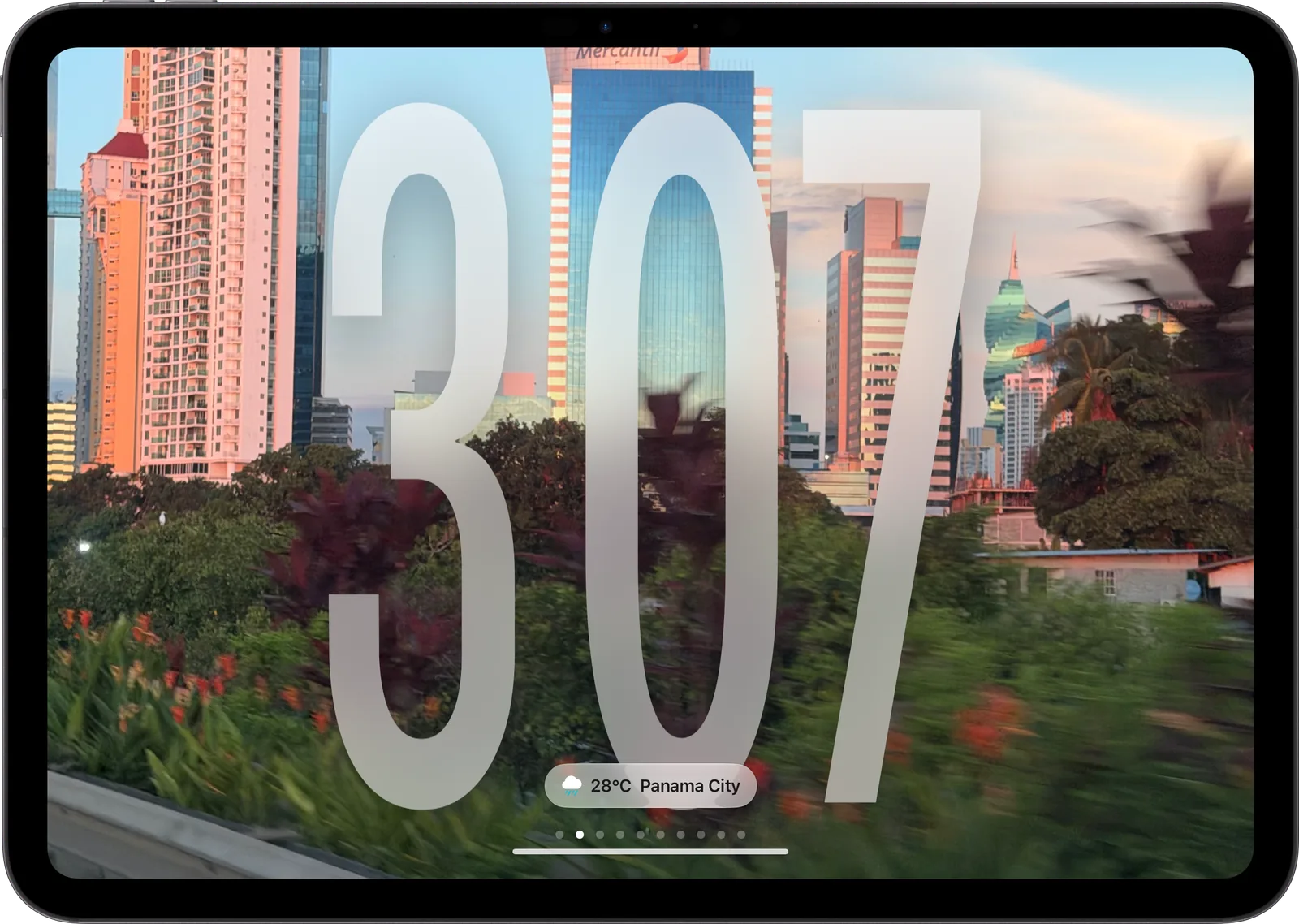
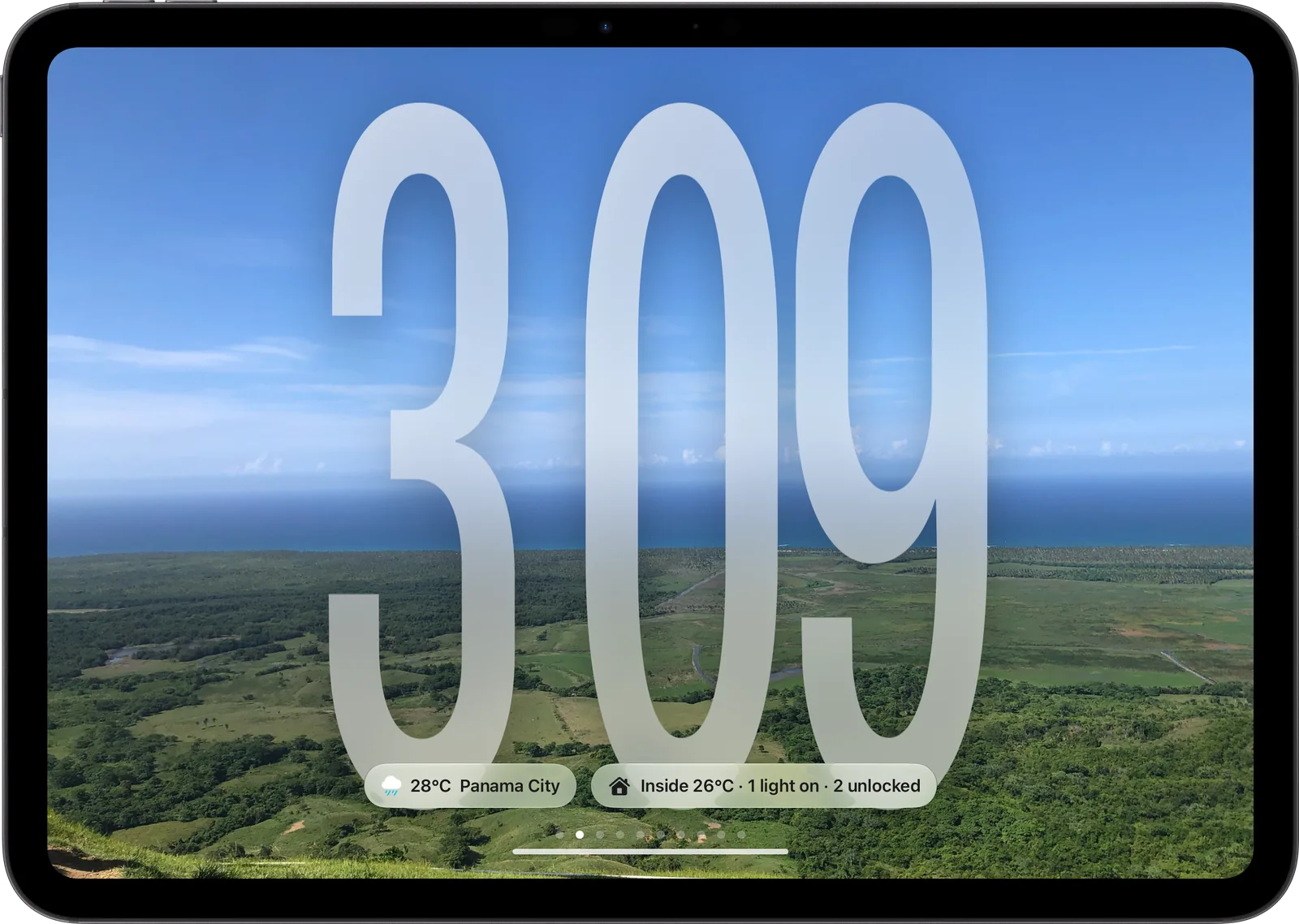
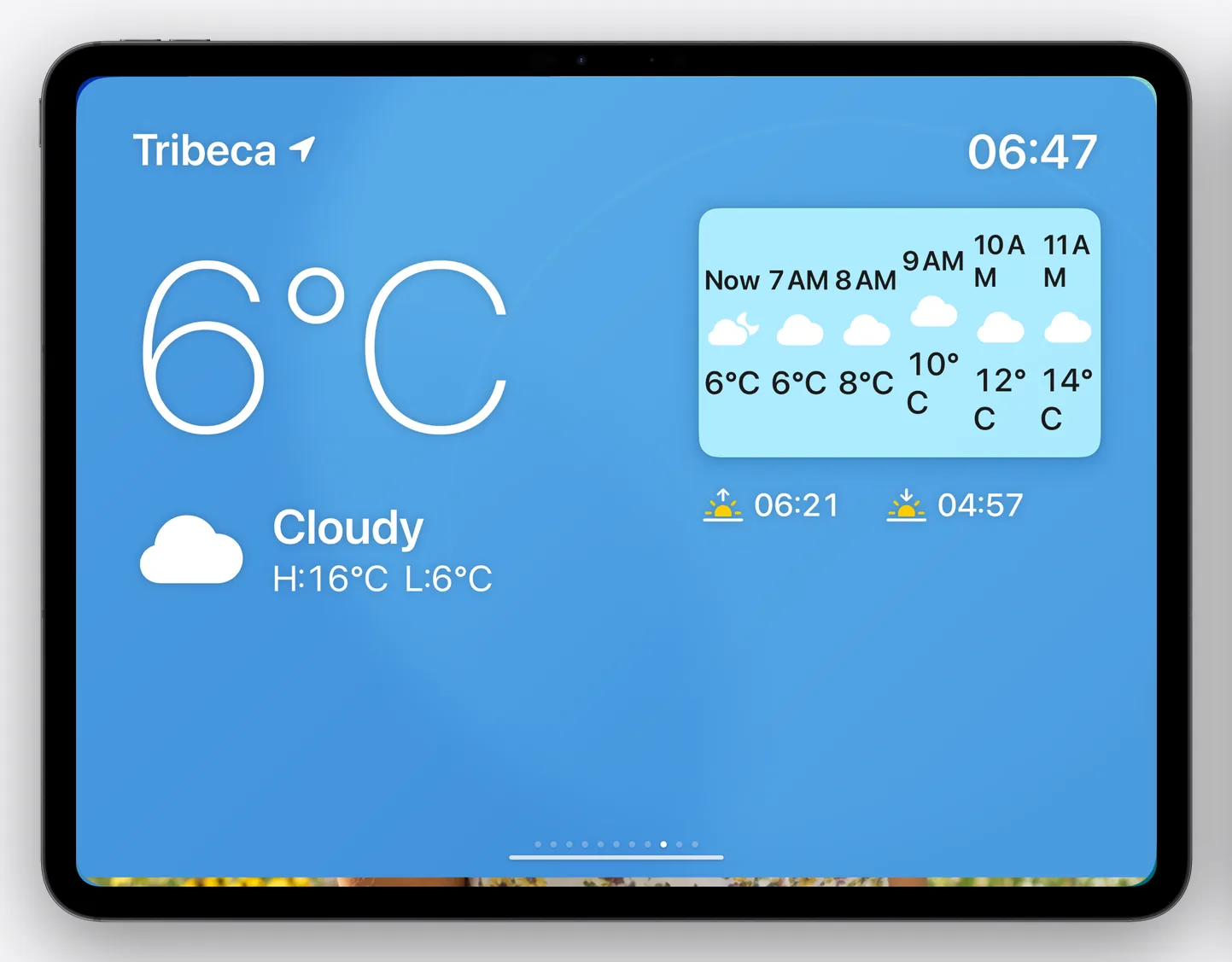
Date · Numerals · Glass · Weather
And when nothing needs controlling
A clock face for every room.
Seven bonus faces plus your own photos and albums. Swipe sideways from the dashboard; change them with a long press.
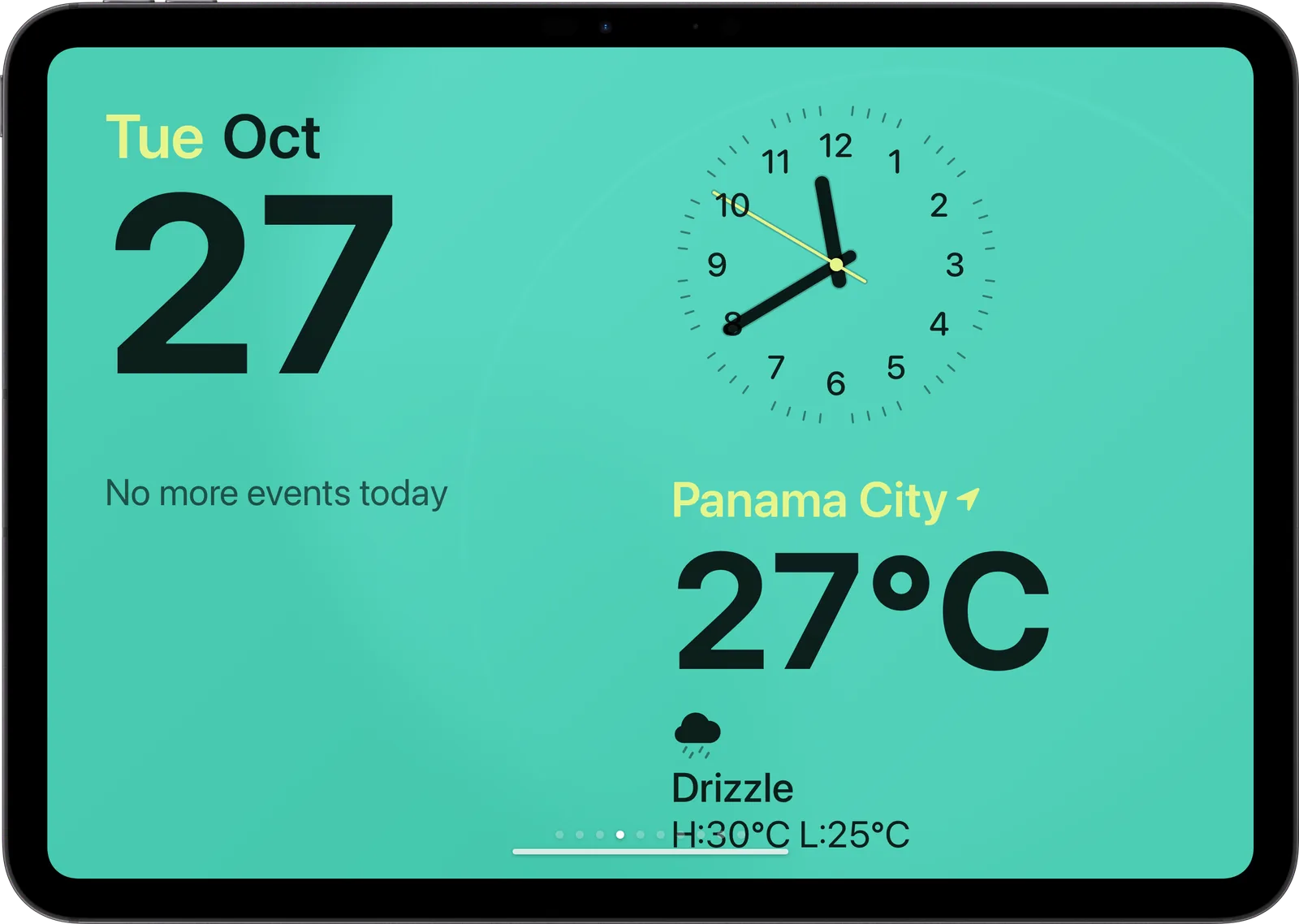
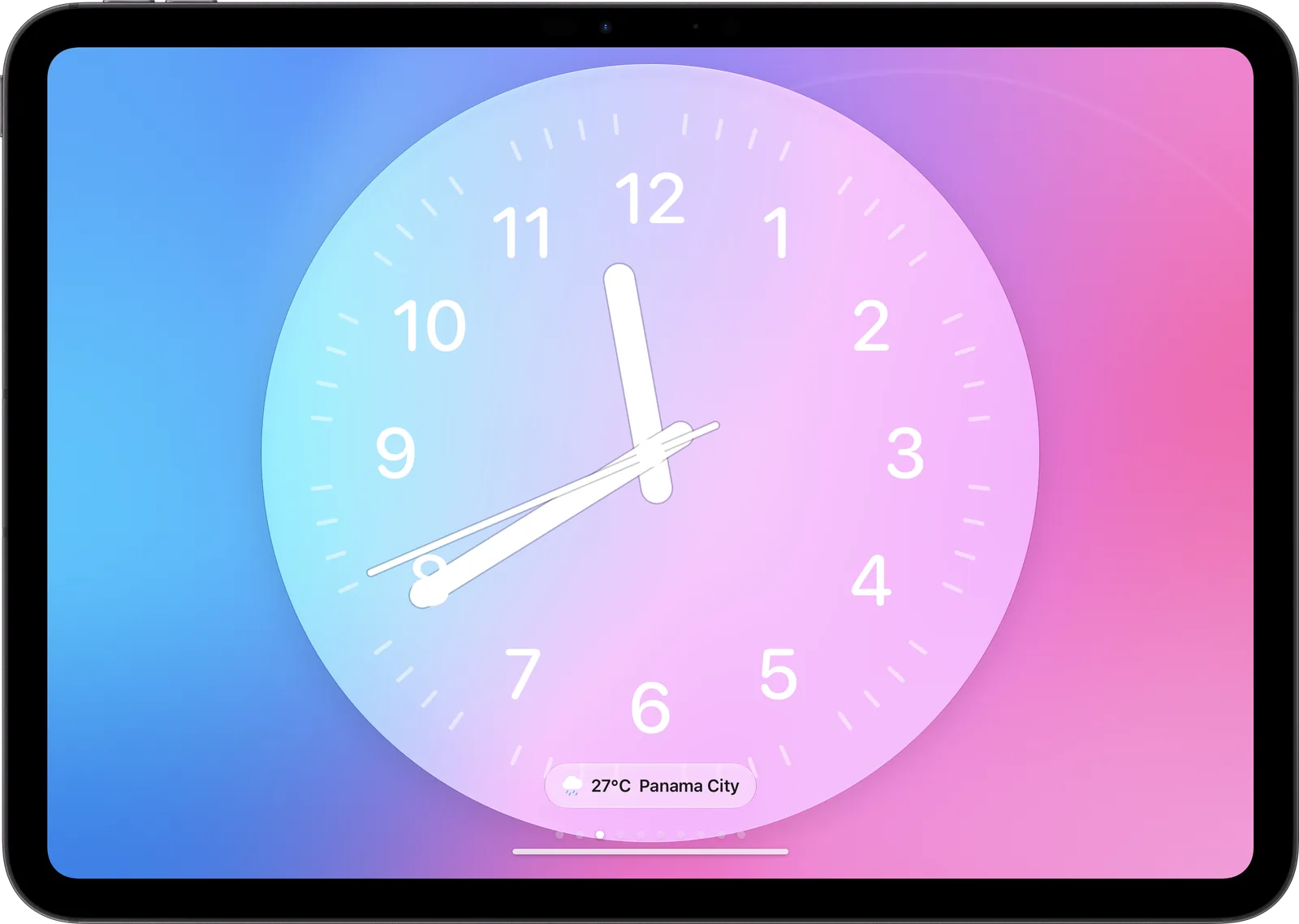
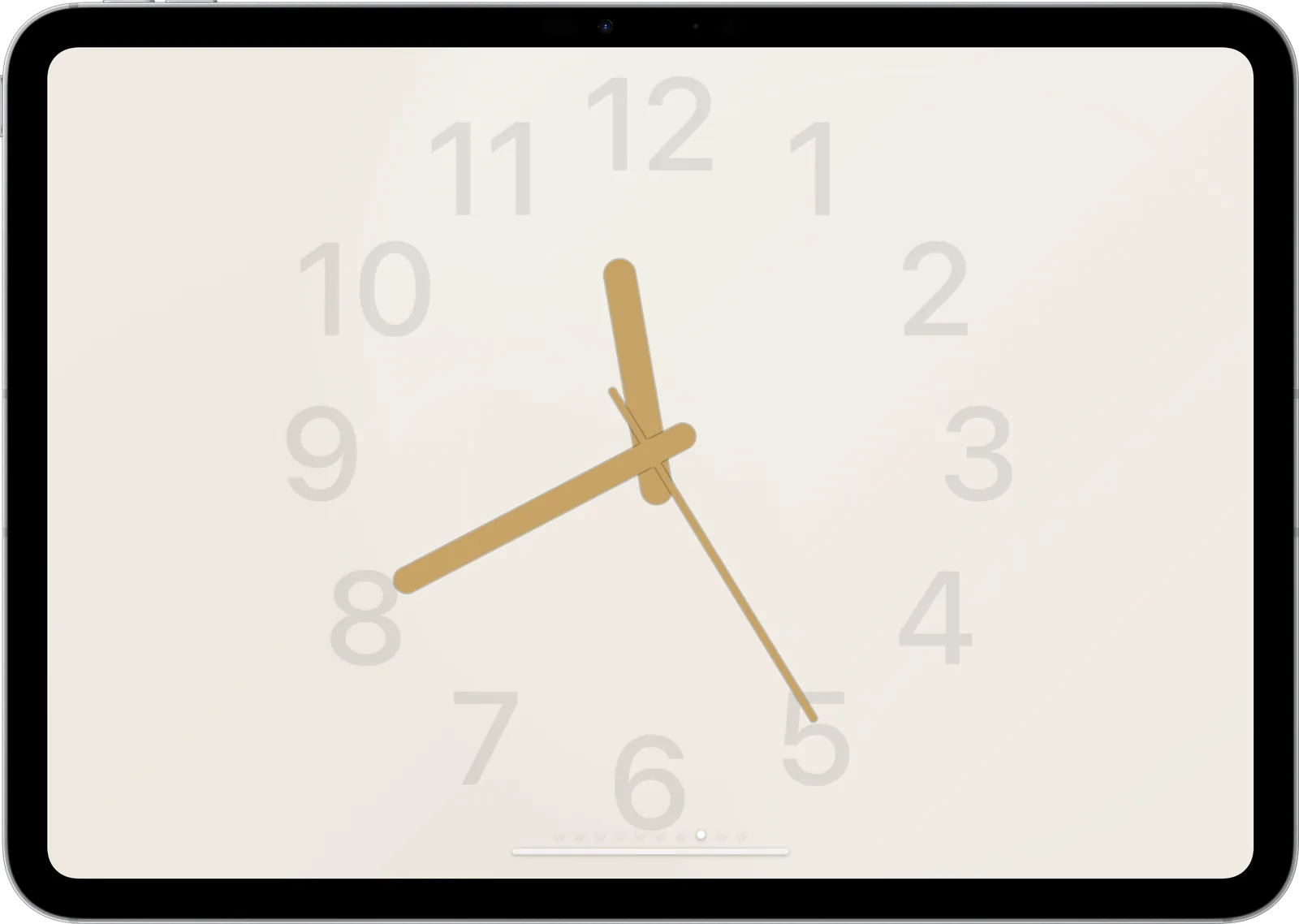
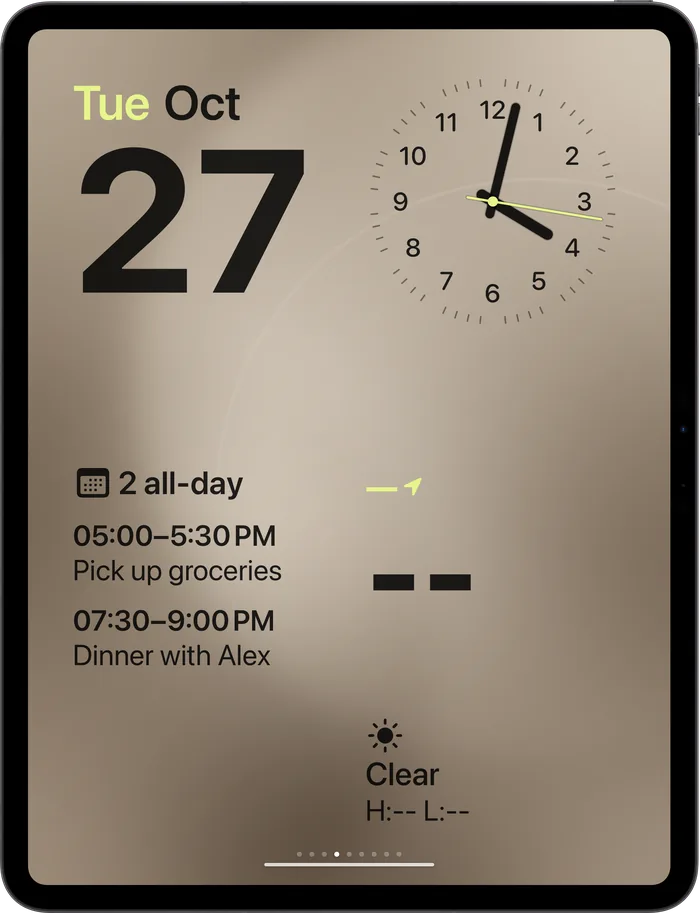
Hang it either way.
Portrait or landscape, every face and the Home Screen re-flow to fit.
Take a closer look.
Everything on a face is one gesture away.
Eight faces
Swipe sideways to change the clock. Long-press to pick wallpaper, colour and numerals.
Always on
Stays awake on power, dims at night, wakes with a tap.
Complications
Weather, your home's status, the next event or what's playing.
Swipe up for apps
Home, cameras, timers, weather and more live behind every face.
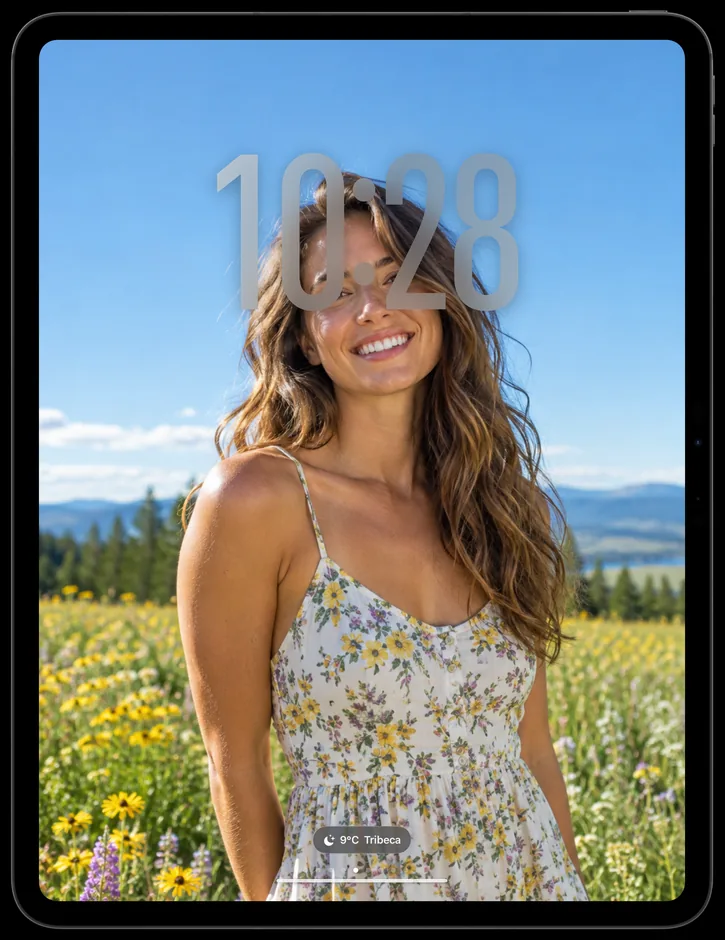
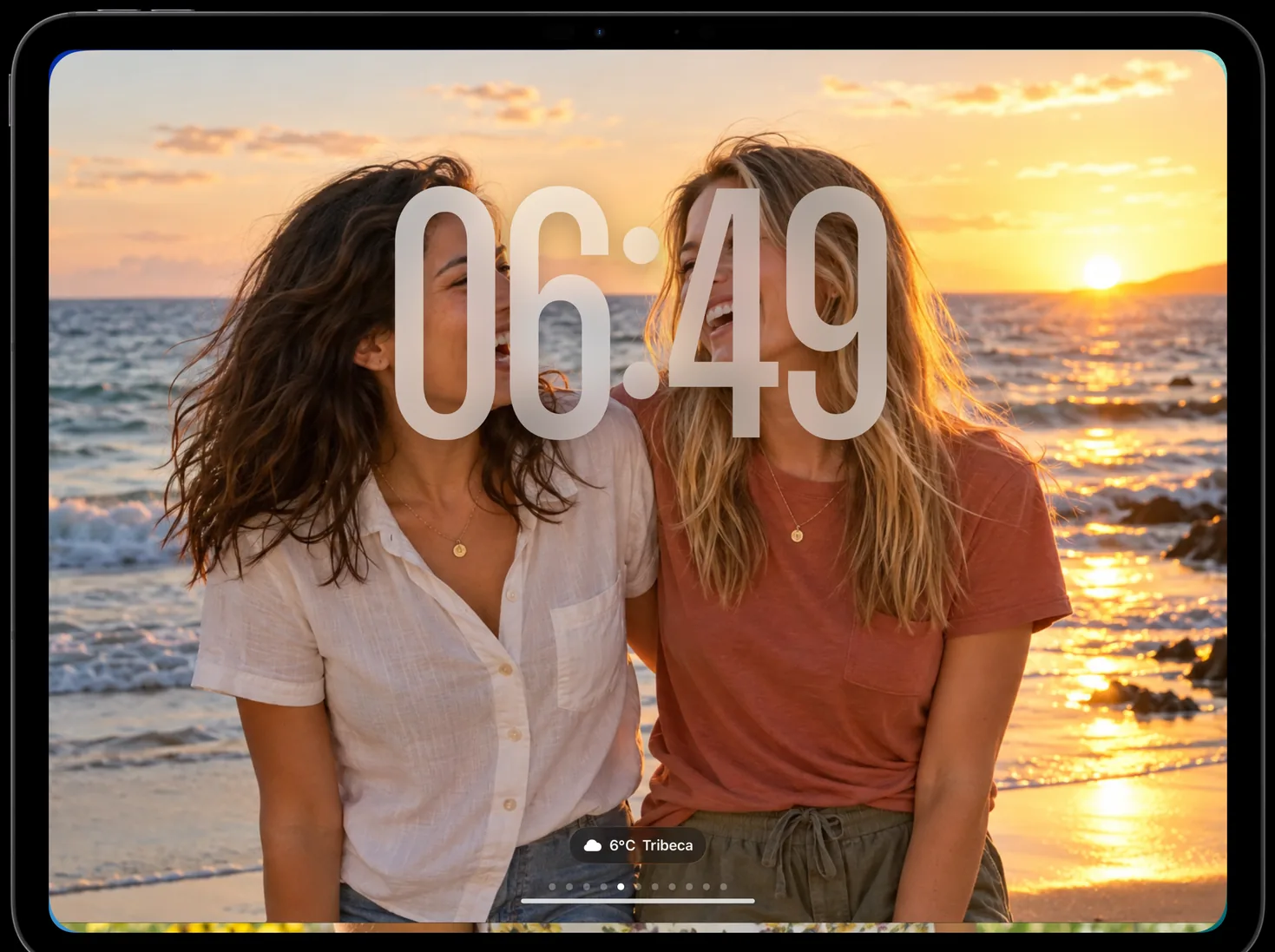
Your people, in front of the time.
Depth Effect lifts the people in your photos in front of the clock, like the Lock Screen. Shared albums refresh on their own as the family adds pictures.
Changes with the day.
Pick a face for the morning, the day, the evening and the night. WallGlass switches between them on its own.
Your home, at a glance.
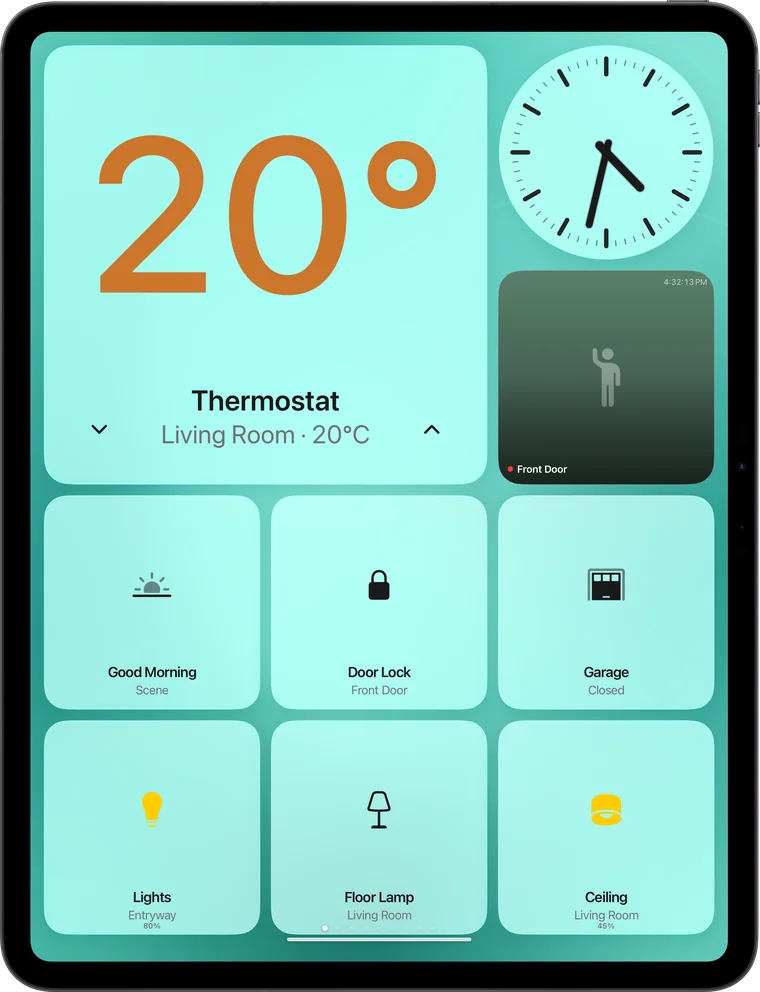
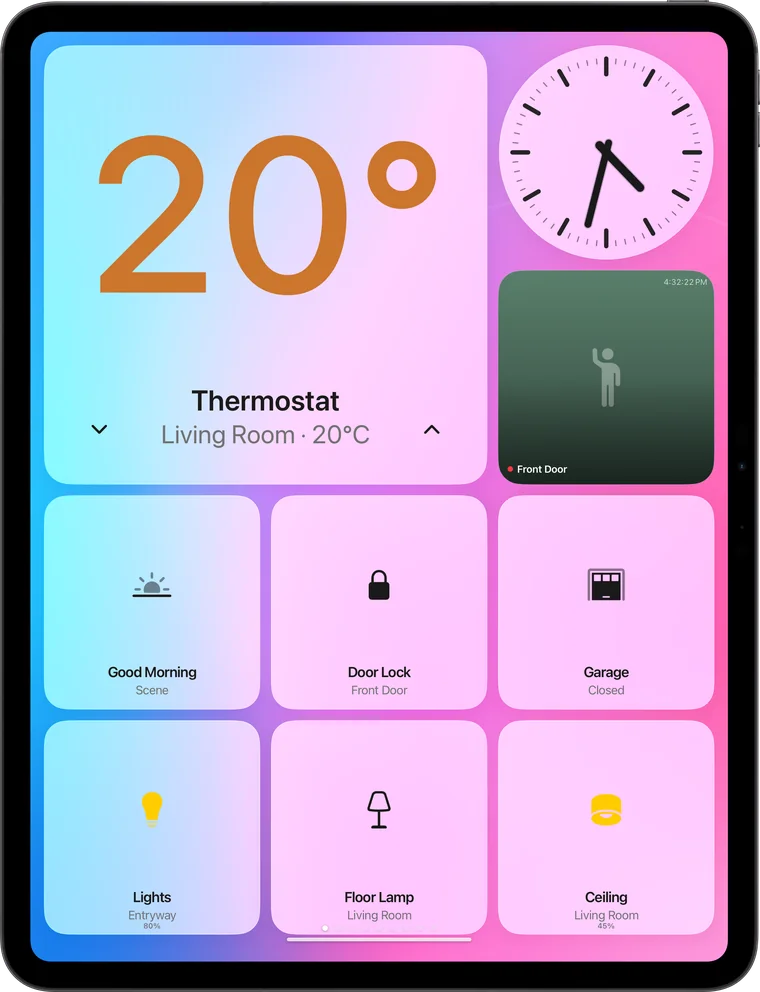
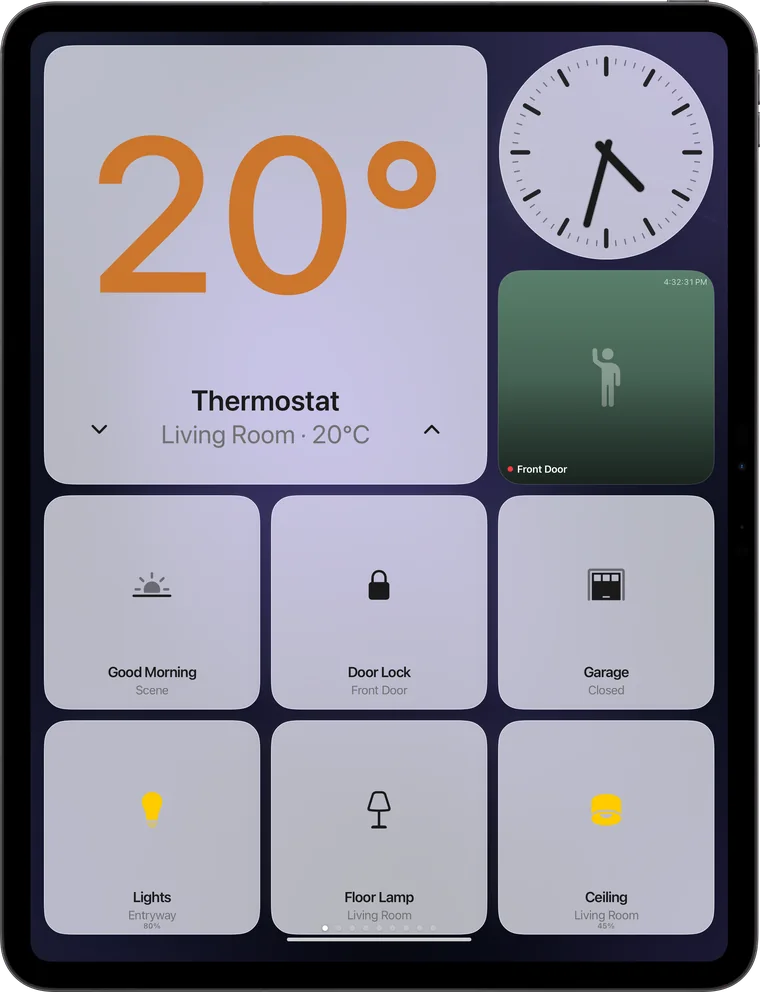
Thermostat, lights, locks, scenes and the front door, on one glass dashboard. Tap to control, swipe to any other face.
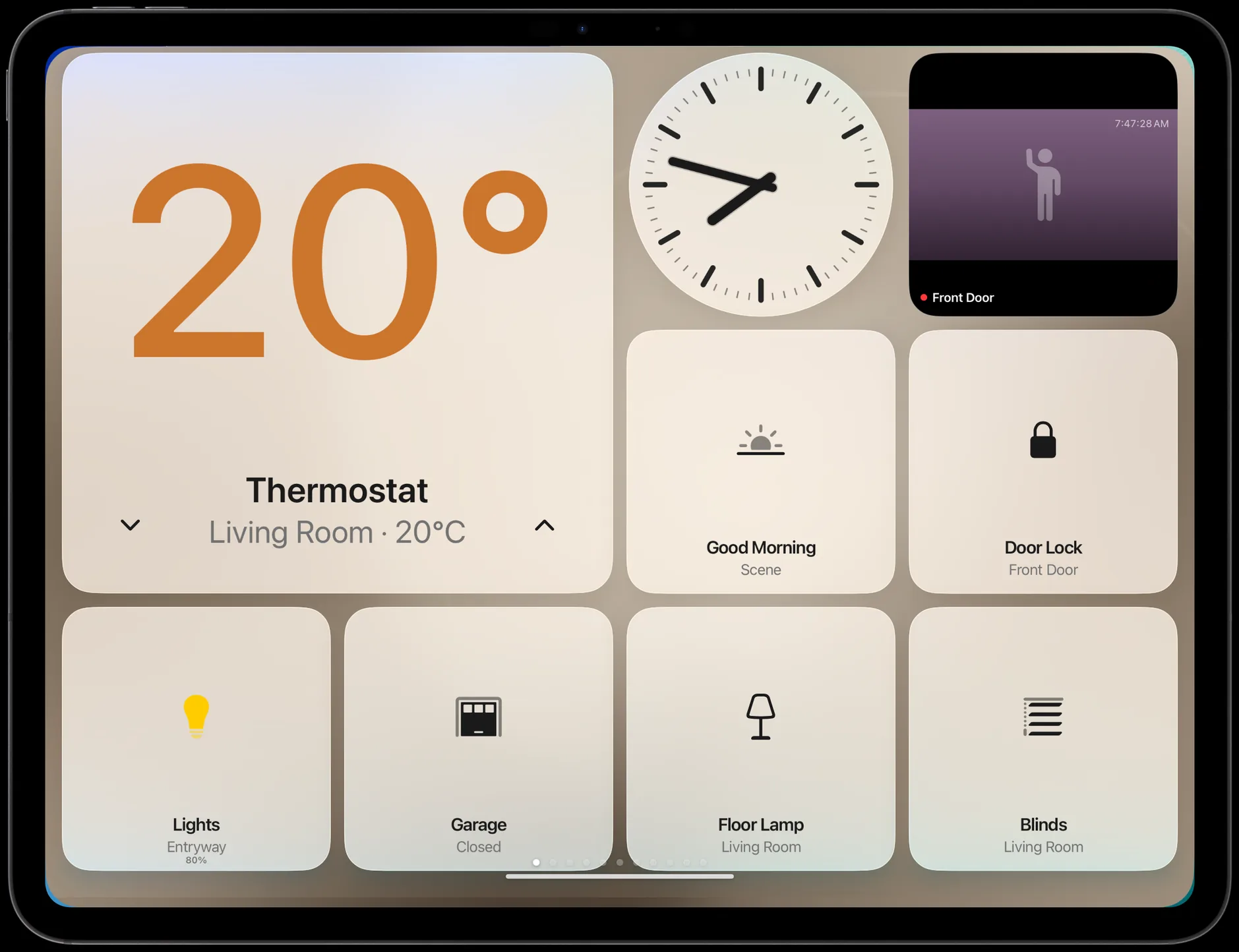
Make it yours.
Every tile is a widget. Hold the dashboard to add, resize and rearrange: a living room, a front door, a morning, an evening.
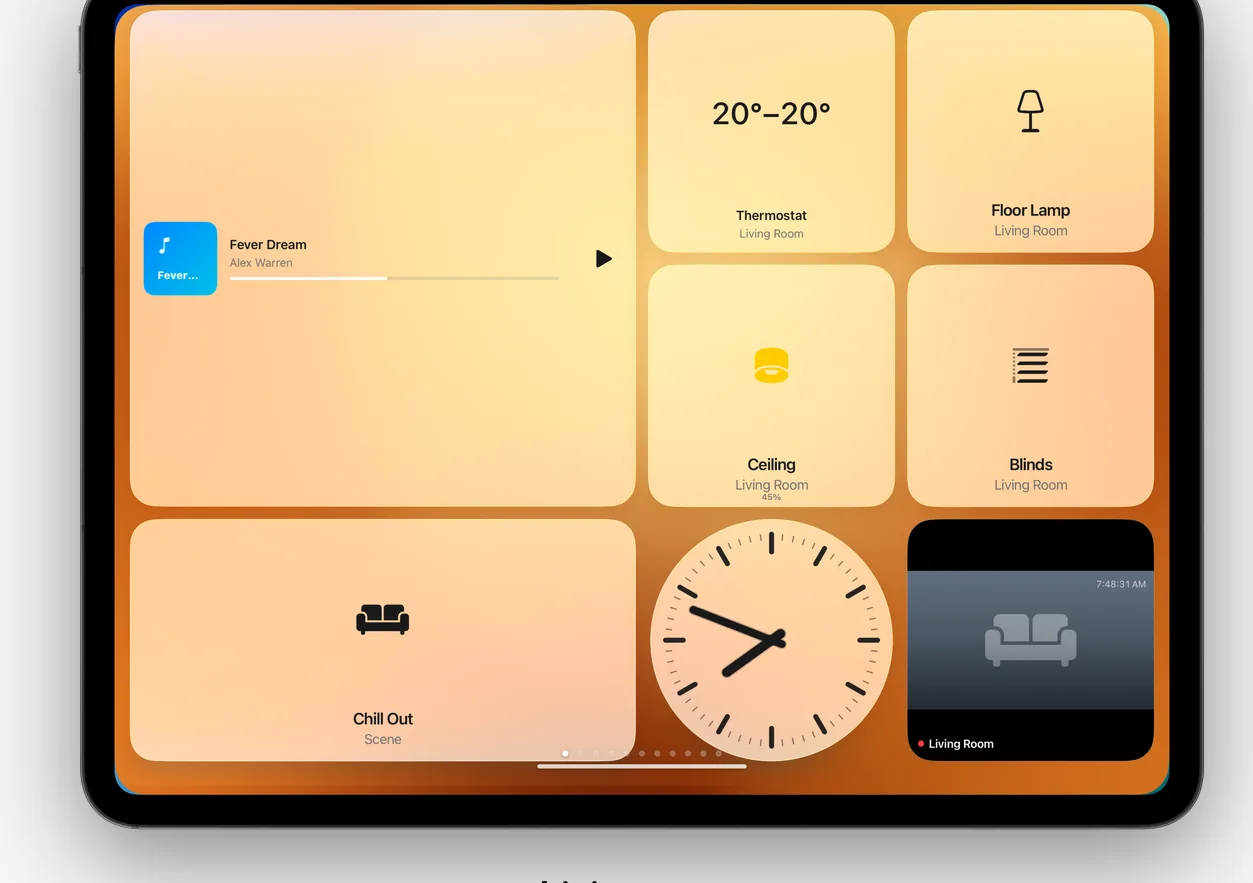
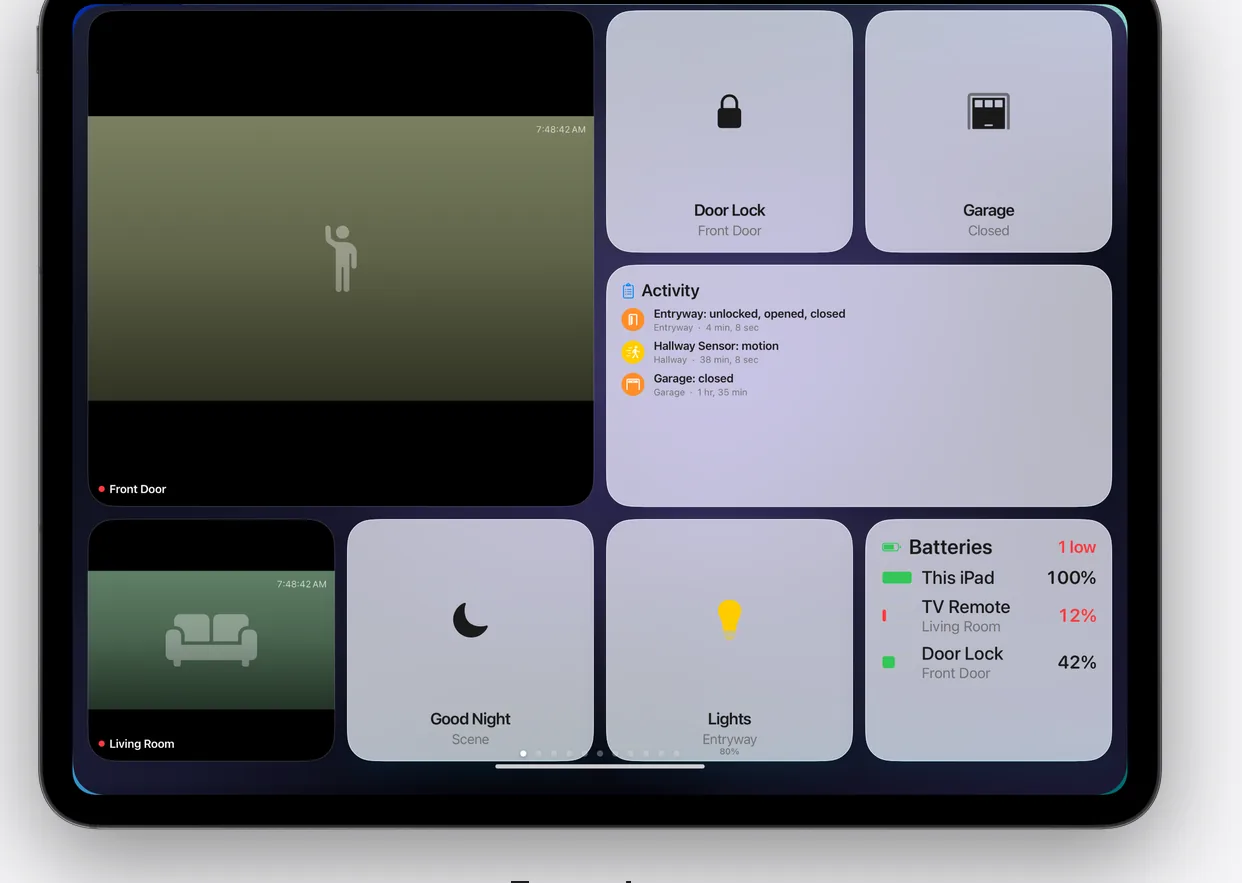
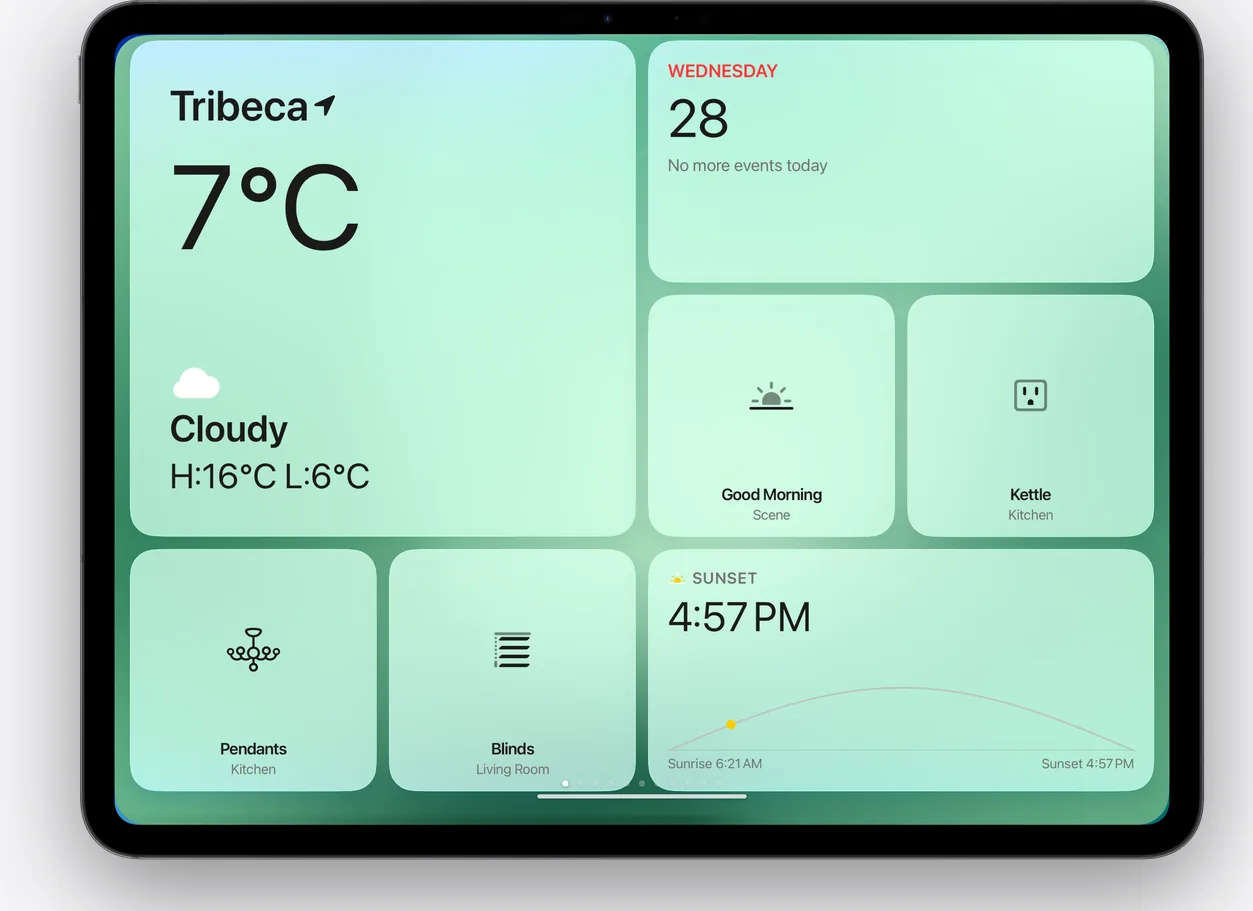
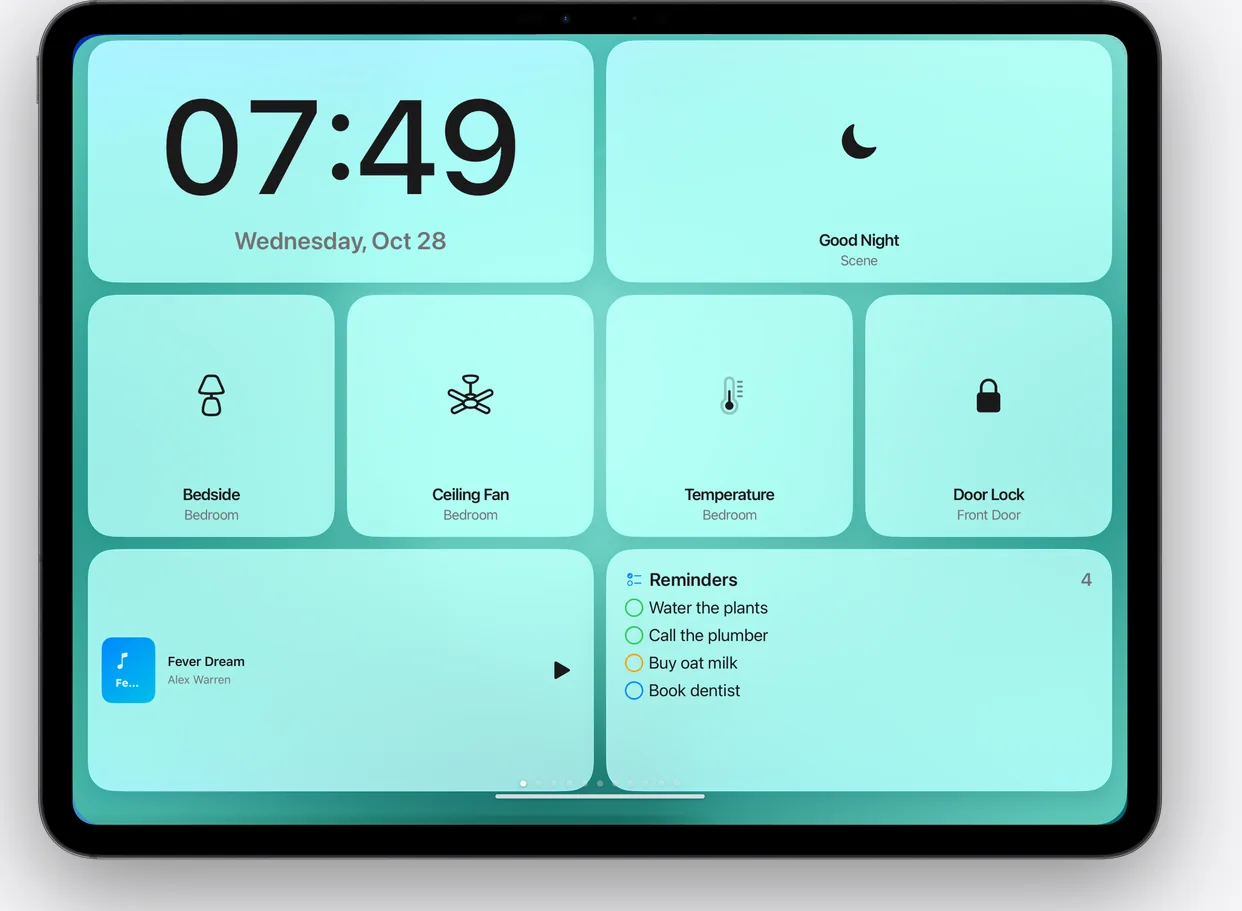
Any colour. Or your photos.
Six glass wallpapers tuned for the dashboard, any colour you like, or an album that changes every few seconds.
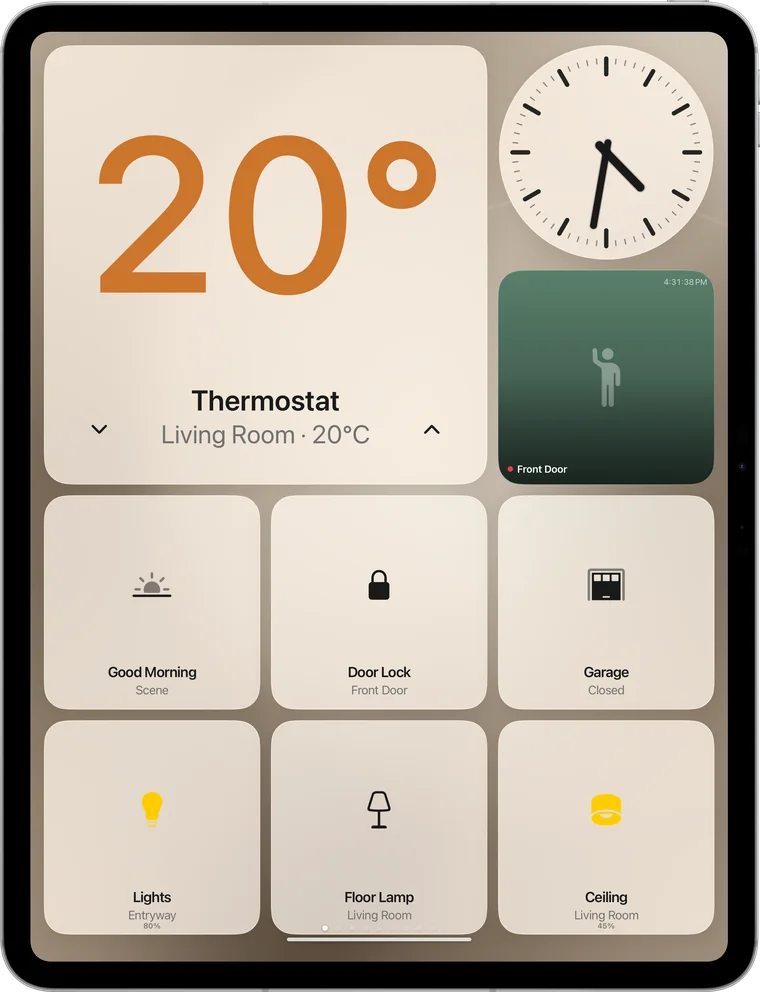
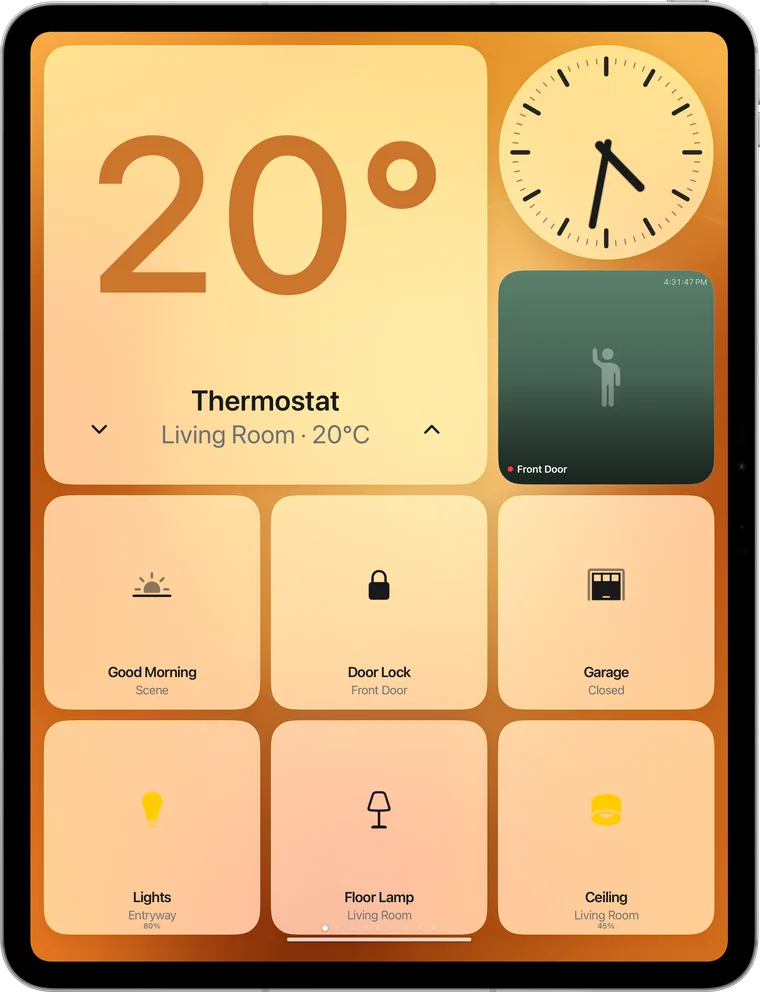
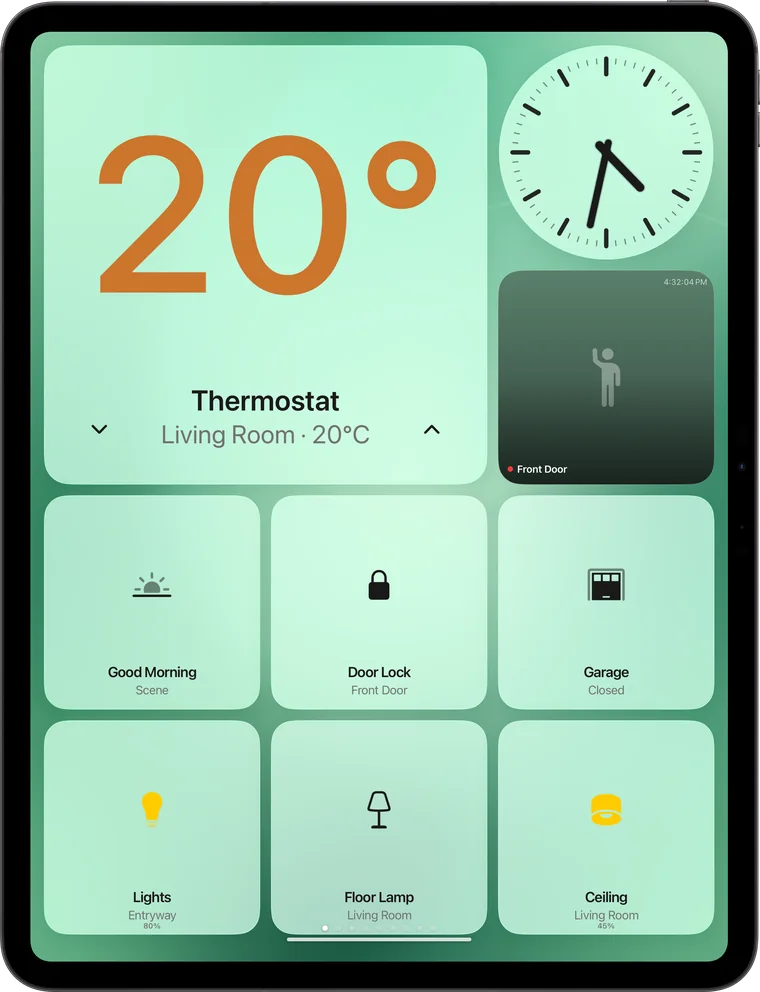
Any wallpaper
Seven gradients, any colour, your own photos or a whole album that cycles.
Any tiles
Thermostat, lights, locks, scenes, cameras, reminders, music, batteries, news and more.
Any size
Small, wide or large tiles on a grid that re-flows in portrait and landscape.
Any room
Pin what matters in that room. The kitchen sees the oven timer, the hallway sees the door.
HomeKit
Everything connected and under one roof.
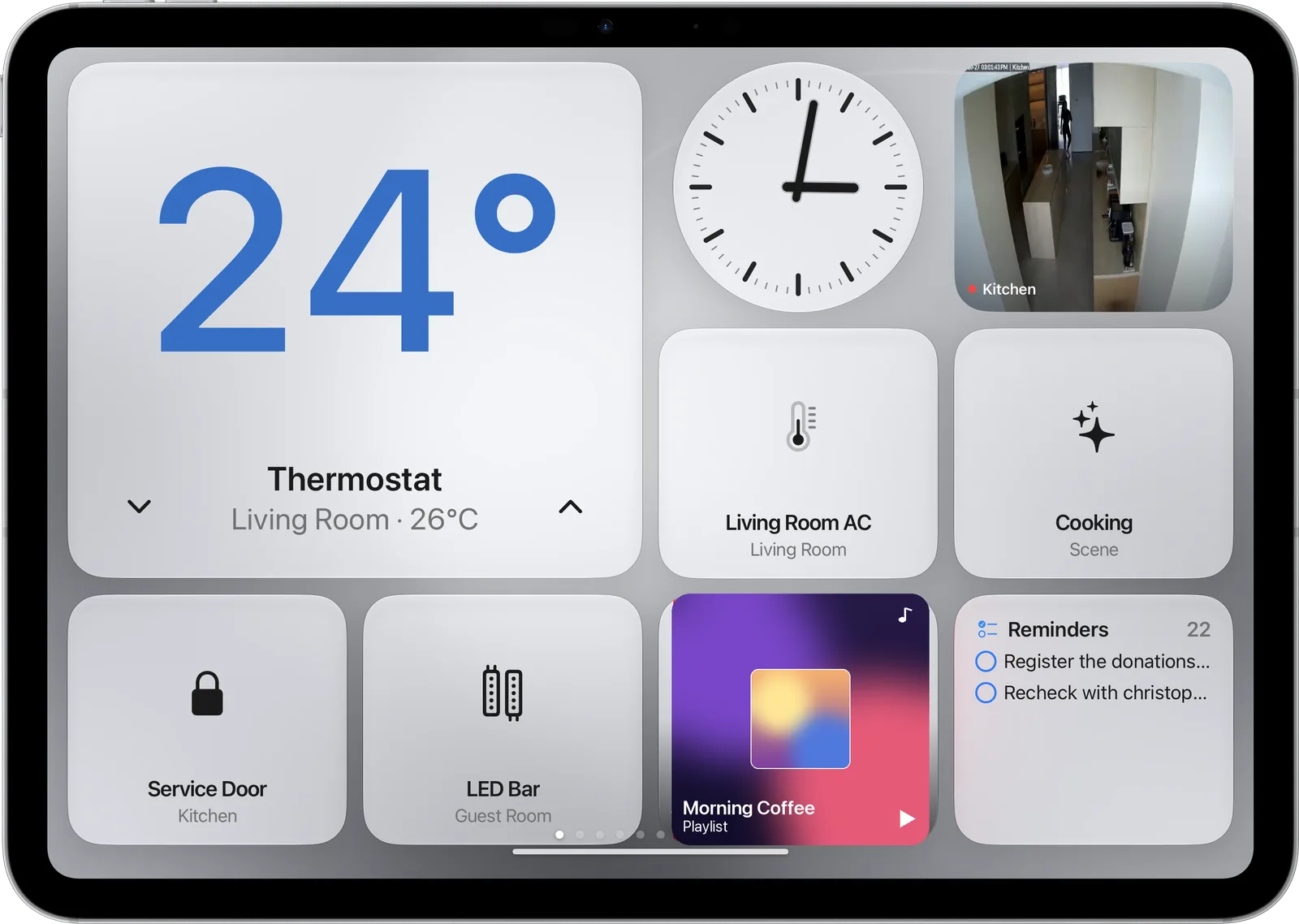
Every HomeKit accessory on a glass dashboard. Tap to control, long-press to rearrange.
- ClimateSet the thermostat with a tap. See the room temperature at a glance.
- Cameras and doorbellLive tiles, and a full-screen pop-up when someone rings.
- Scenes and locksOne tap for Good Night, Leaving or Movie Time. Lock the door on the way out.
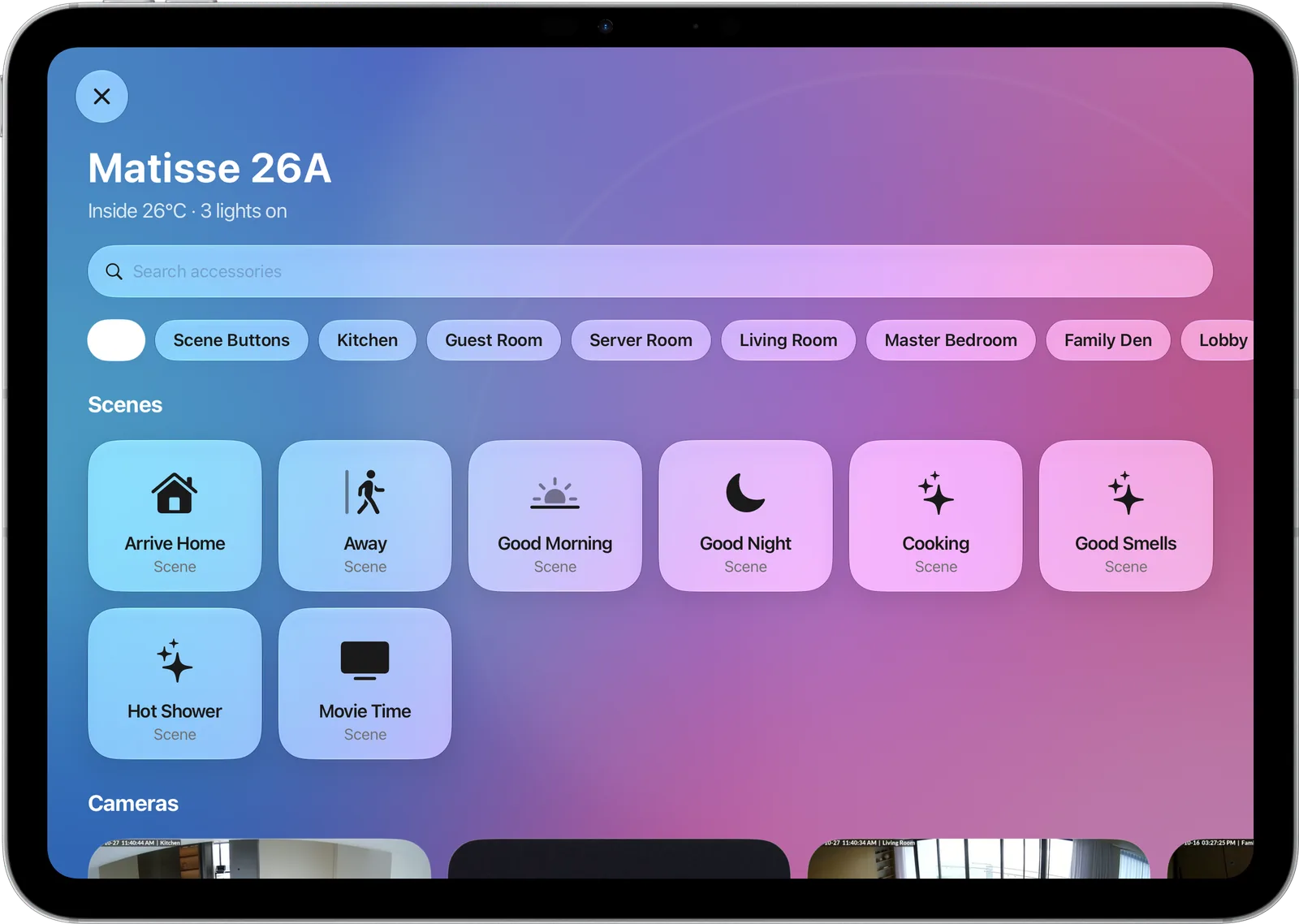
Your whole home, searchable.
Scenes first, then every room. Type to find an accessory, tap to toggle it, pin favourites to the dashboard.
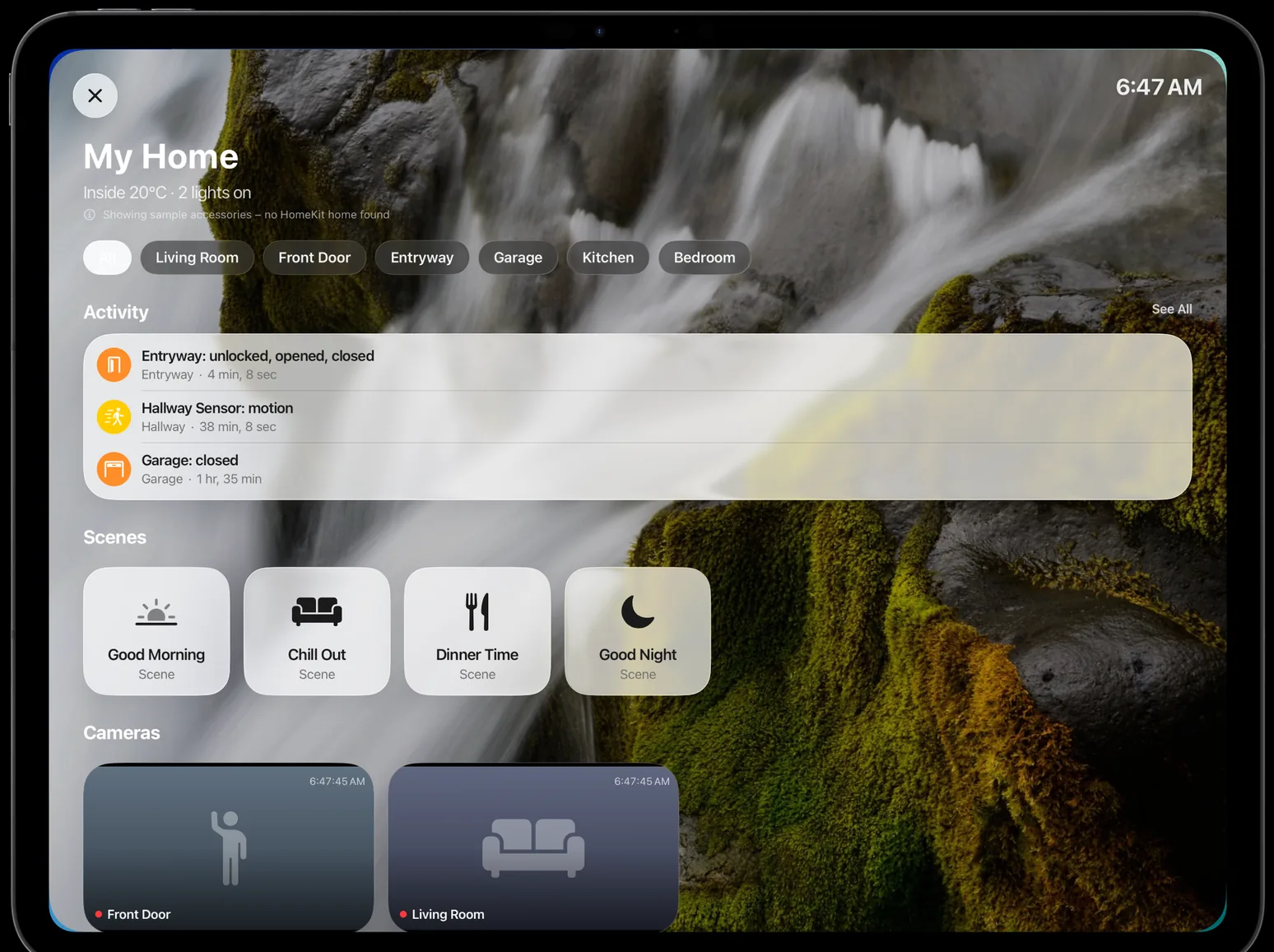
Know what happened while you were out.
Locks, doors, motion, the doorbell and the alarm, grouped by room and time at the top of the Home app, on a tile, and as a short banner when it matters.
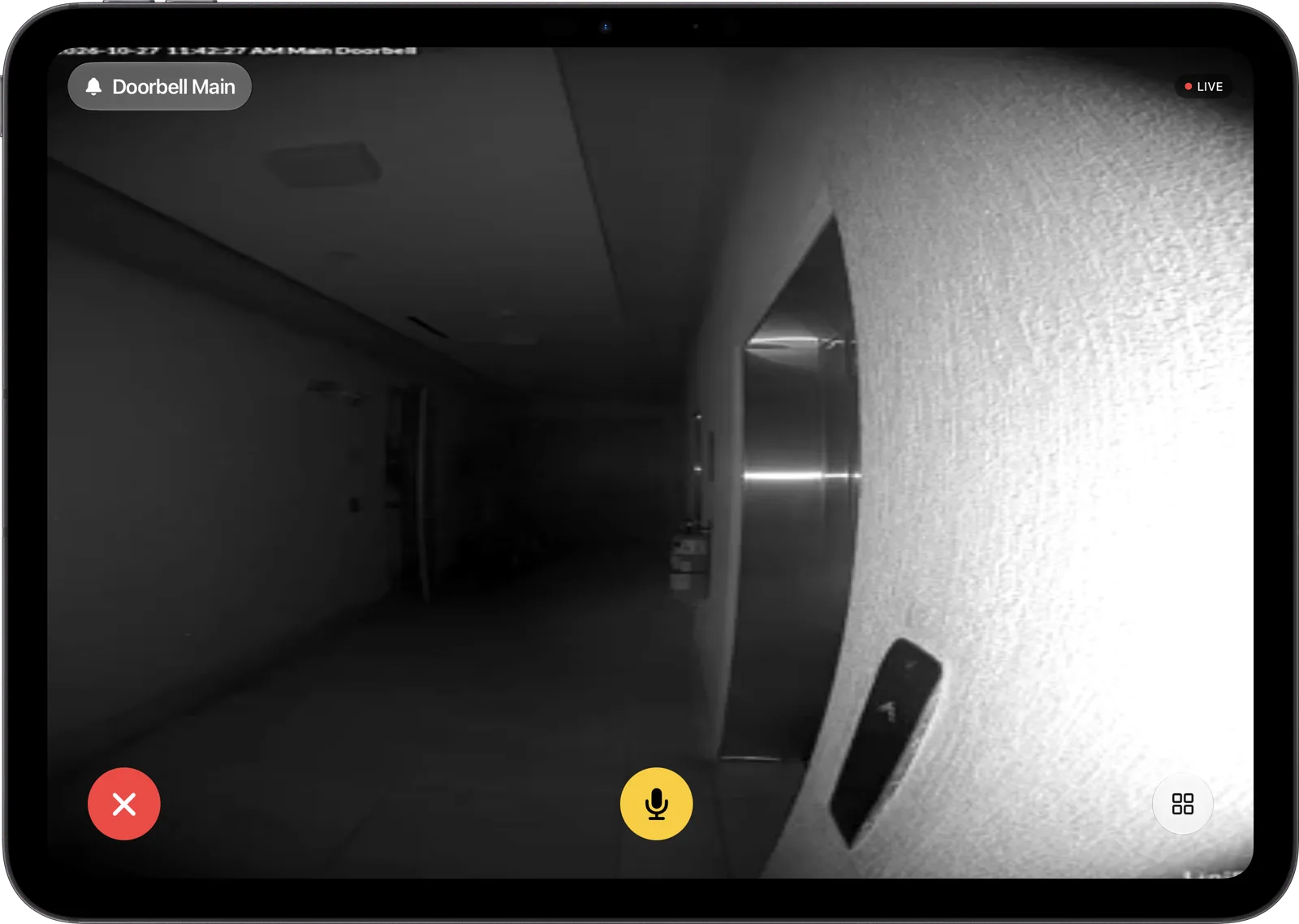
Every camera. And whoever is at the door.
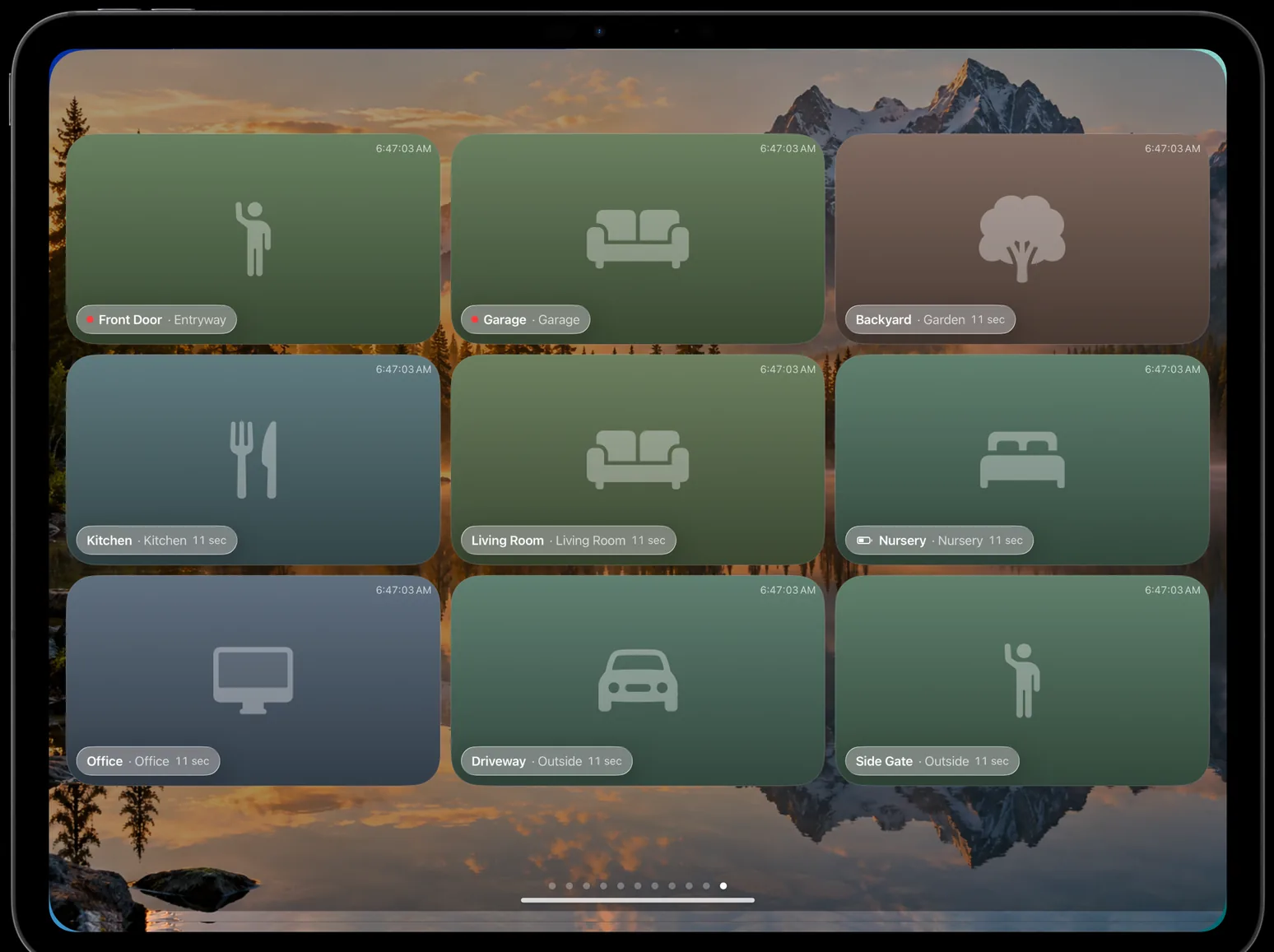
A live grid of your HomeKit cameras. When the doorbell rings, the feed takes over the screen.
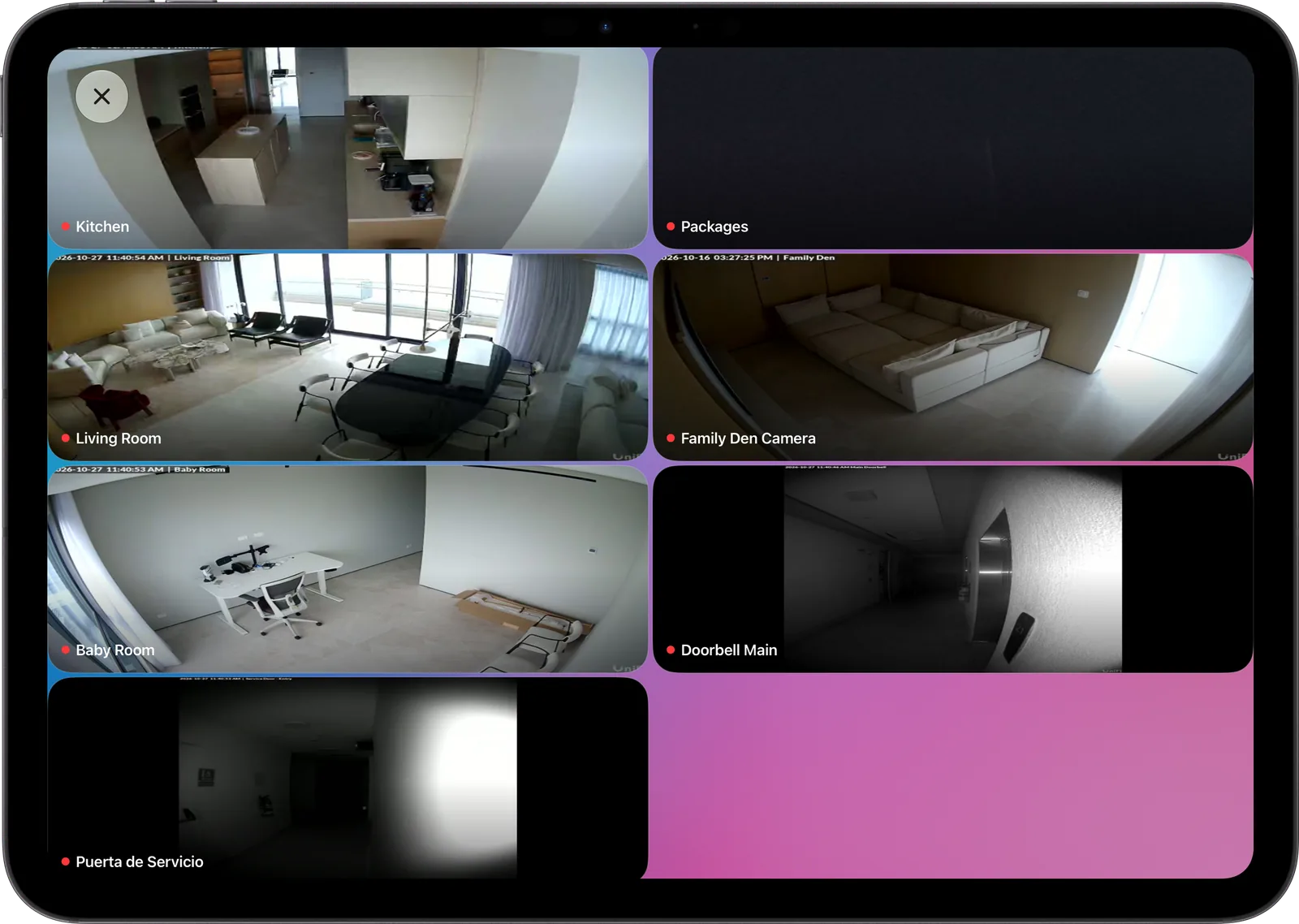
Nine cameras. One glance.
The Cameras face keeps every camera on the wall: live where it matters, snapshots everywhere else, never stretched. Tap one to go full screen.
Home Assistant
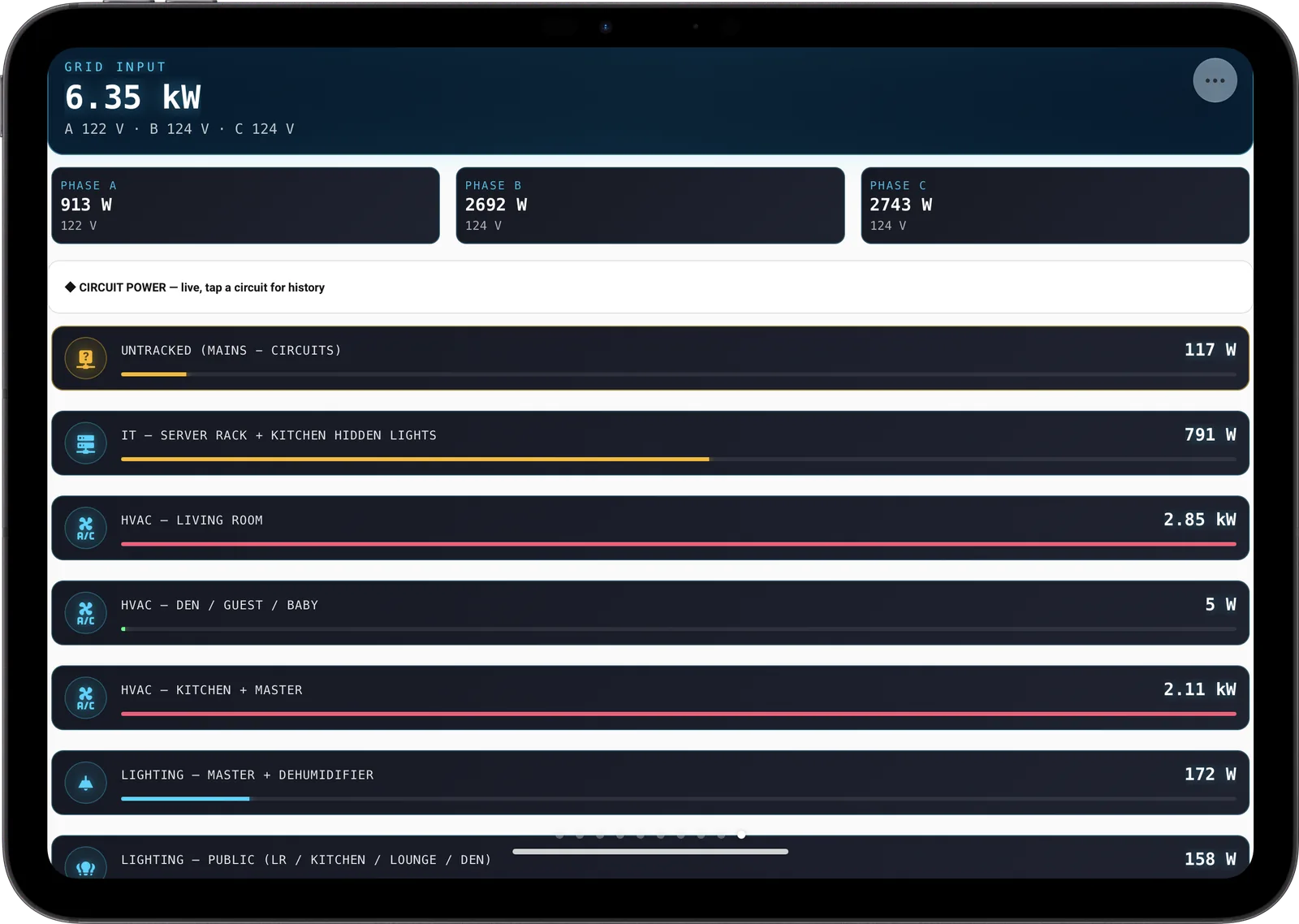
Any Home Assistant dashboard. Full screen.
Sign in once and add up to three Home Assistant dashboards as faces. The sidebar and header are hidden, so your cards fill the whole display.
- Local or remoteFind your server on the network, or use your remote URL. Self-signed certificates are supported.
- Your token stays on the iPadThe long-lived access token is stored in the Keychain and sent only to your server.
- Pick the viewChoose the dashboard and the tab. Swipe sideways to reach your other faces.
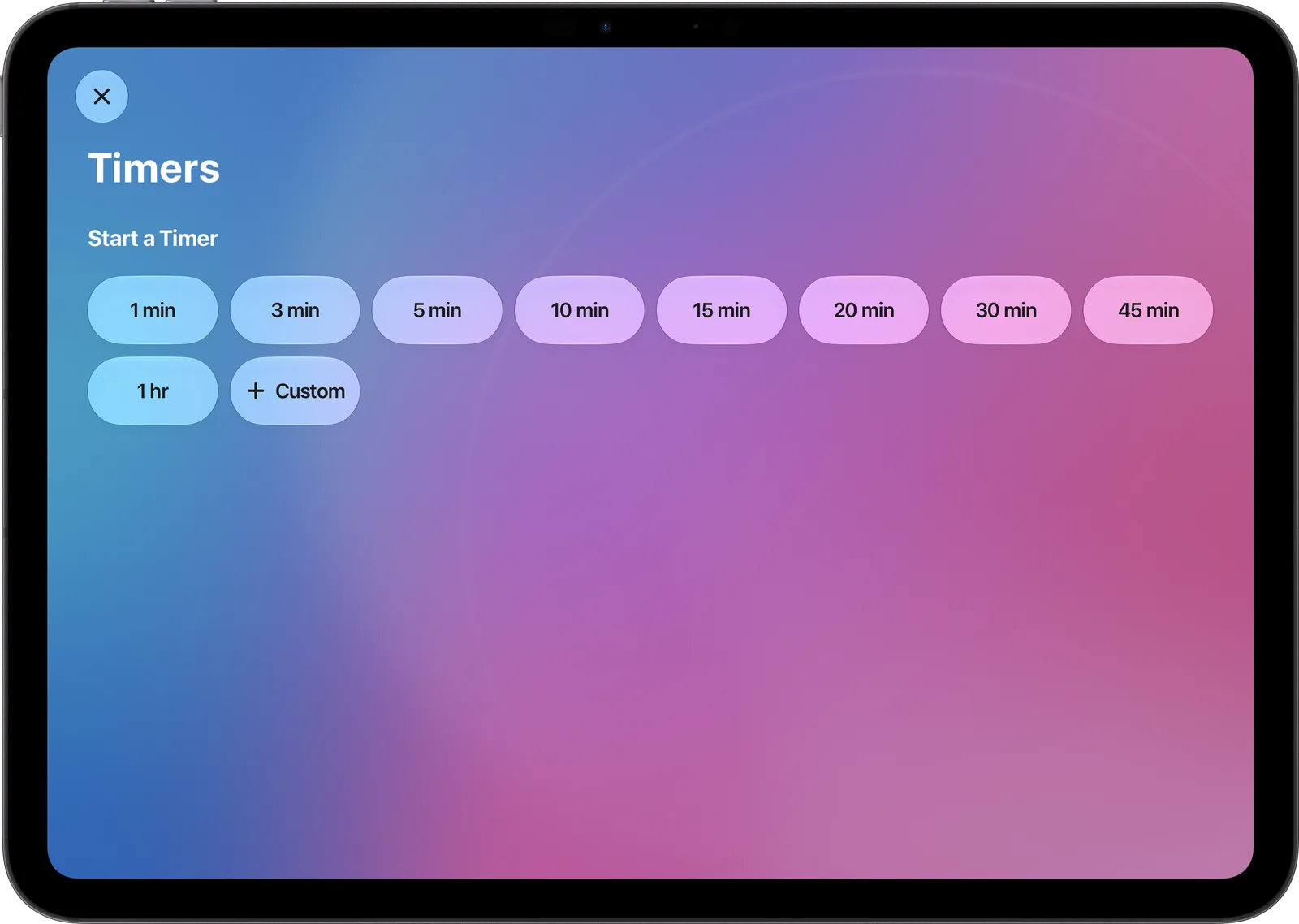
Timers you can see from across the room.
Name them, start them with a tap or with Siri, and keep an eye on them from any face. They ring even when the iPad is locked.
Up on time. In every time zone.
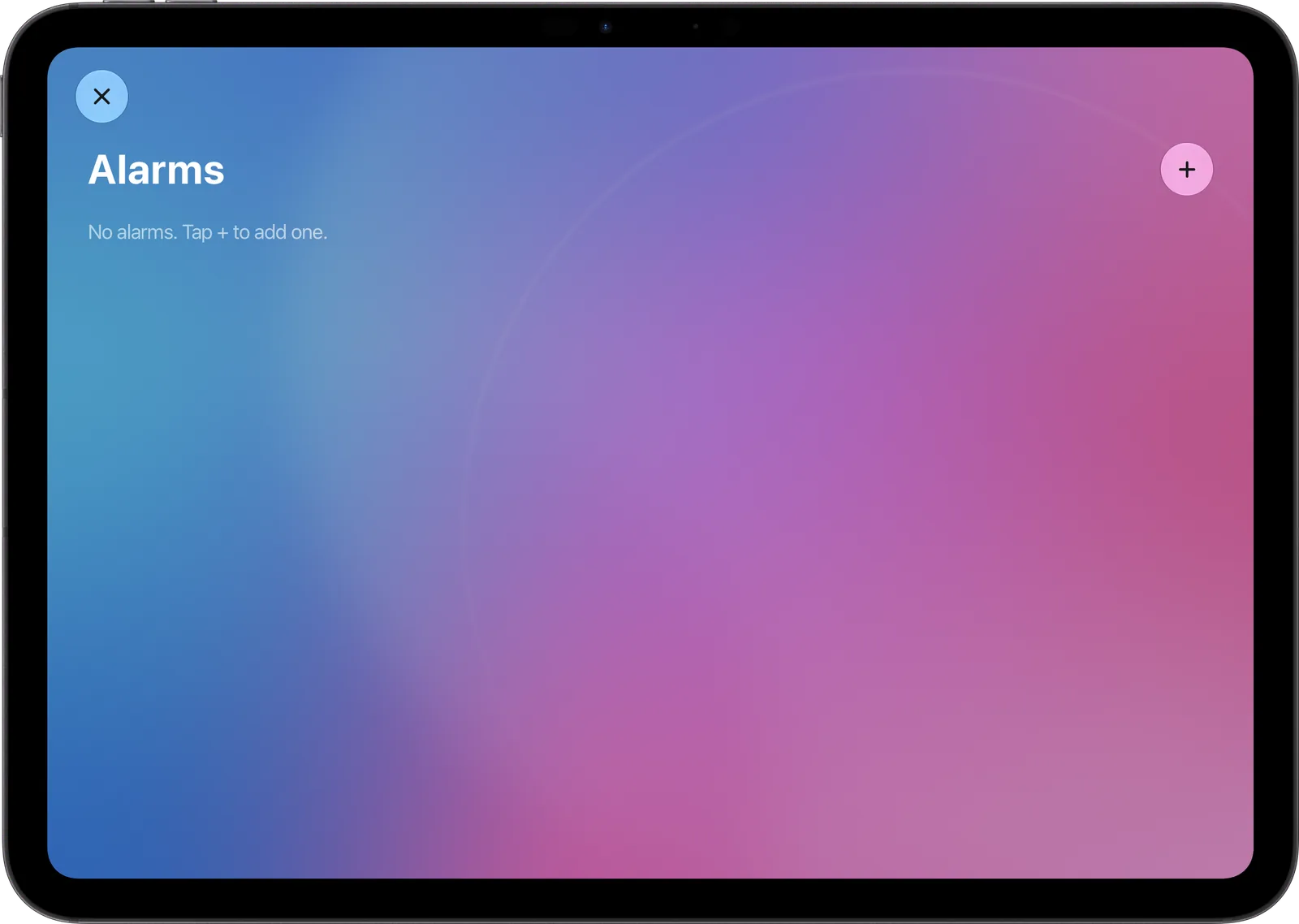
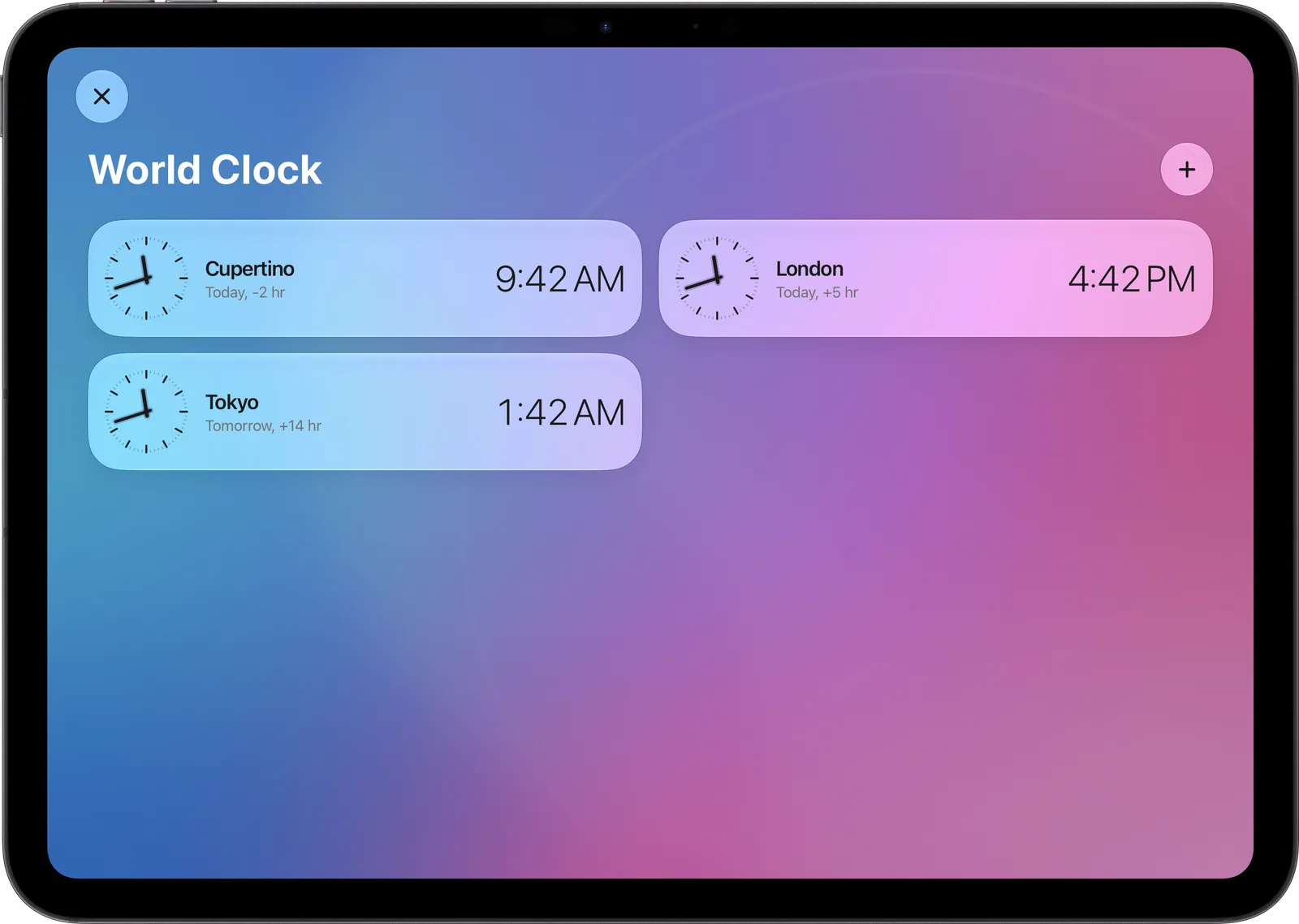
Alarms with their own sound, snooze and a skip for tomorrow, and a World Clock whose dials keep their own time.
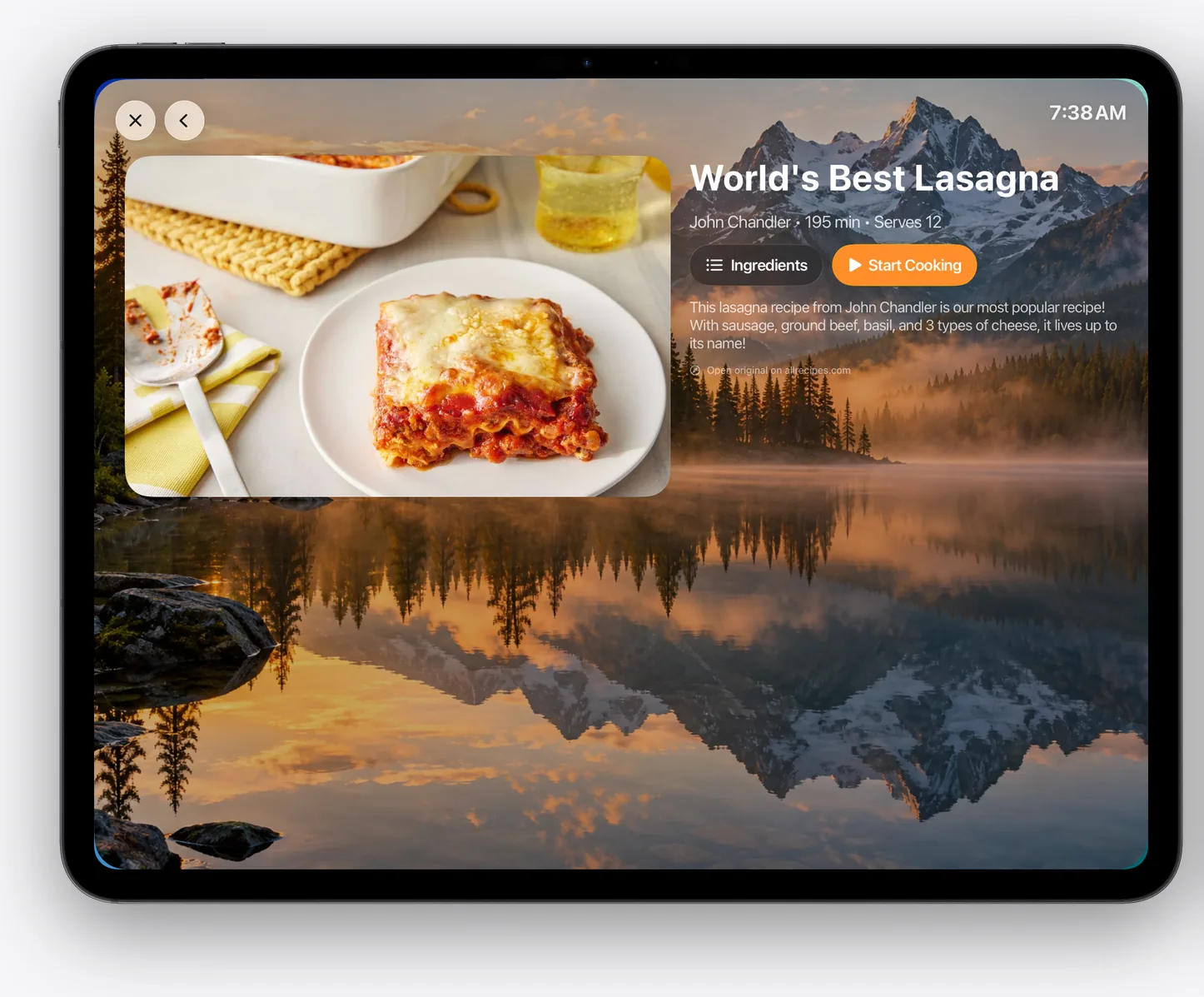
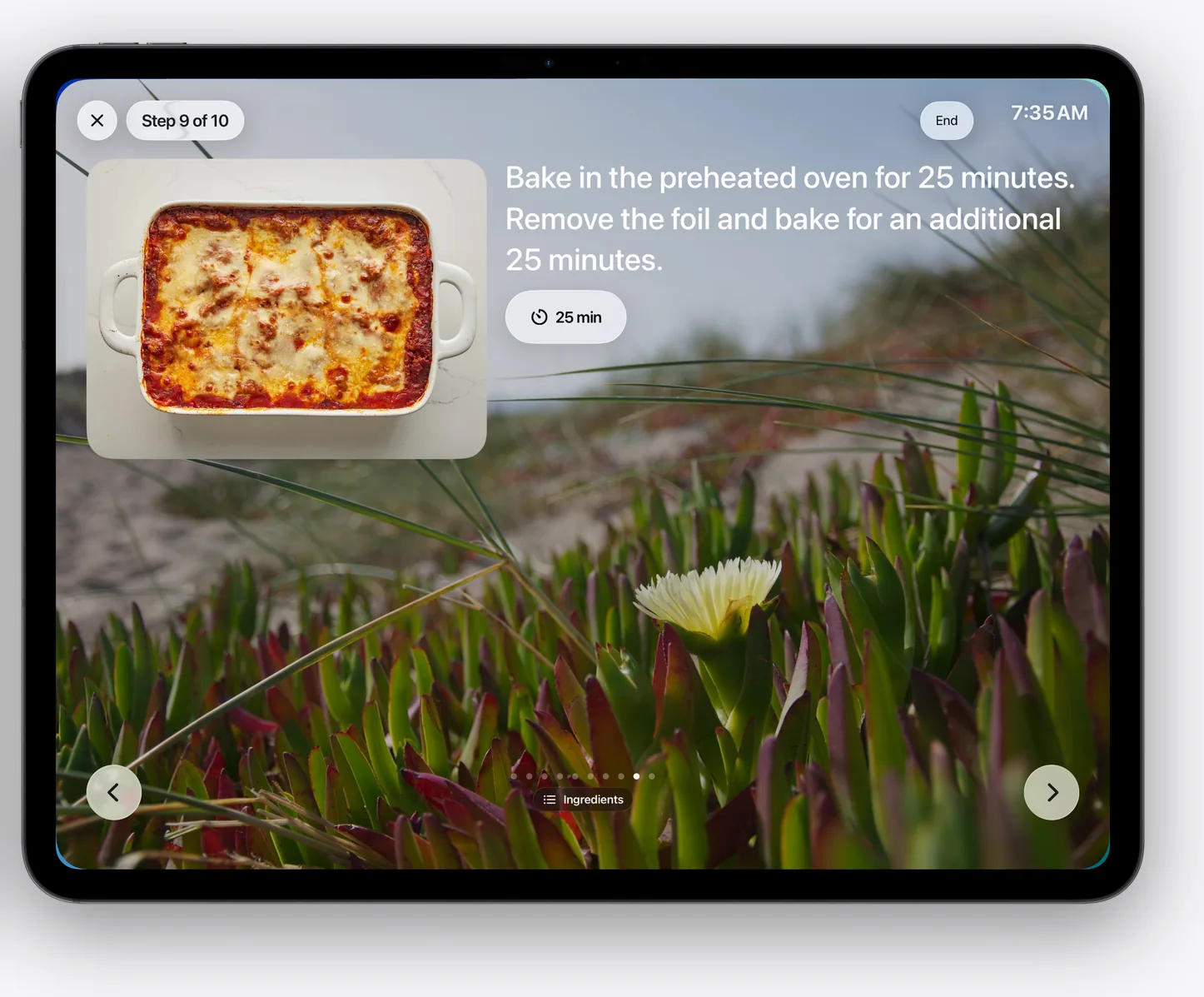
Start cooking.
Paste a recipe link. WallGlass lays out the ingredients and the steps, one at a time, with a timer wherever the recipe needs one.
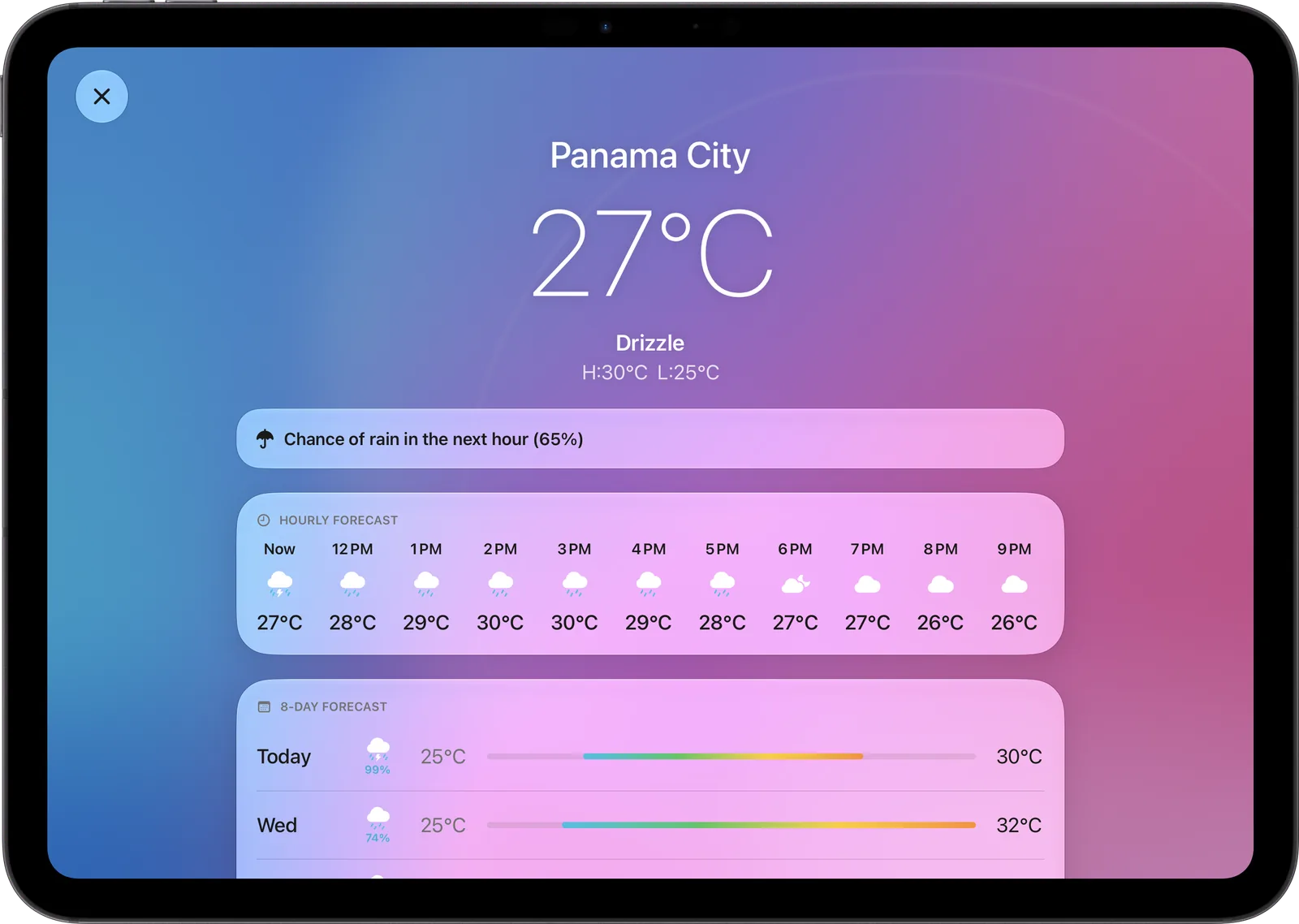
The day, before you step out.
Hourly and ten-day forecasts, and your calendars, right on the wall.
Weather
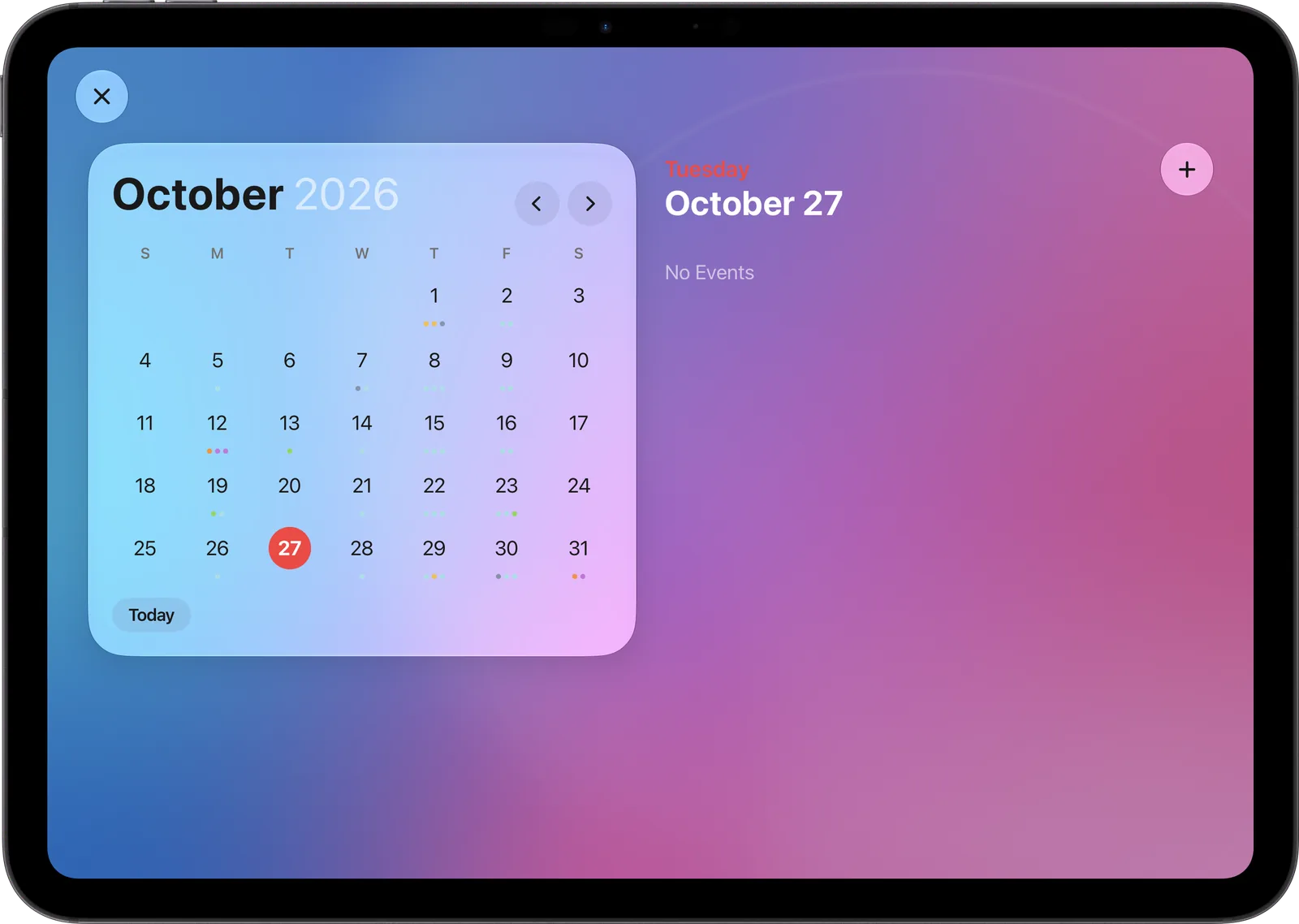
Calendar
FaceTime
Timers
Alarms
World Clock
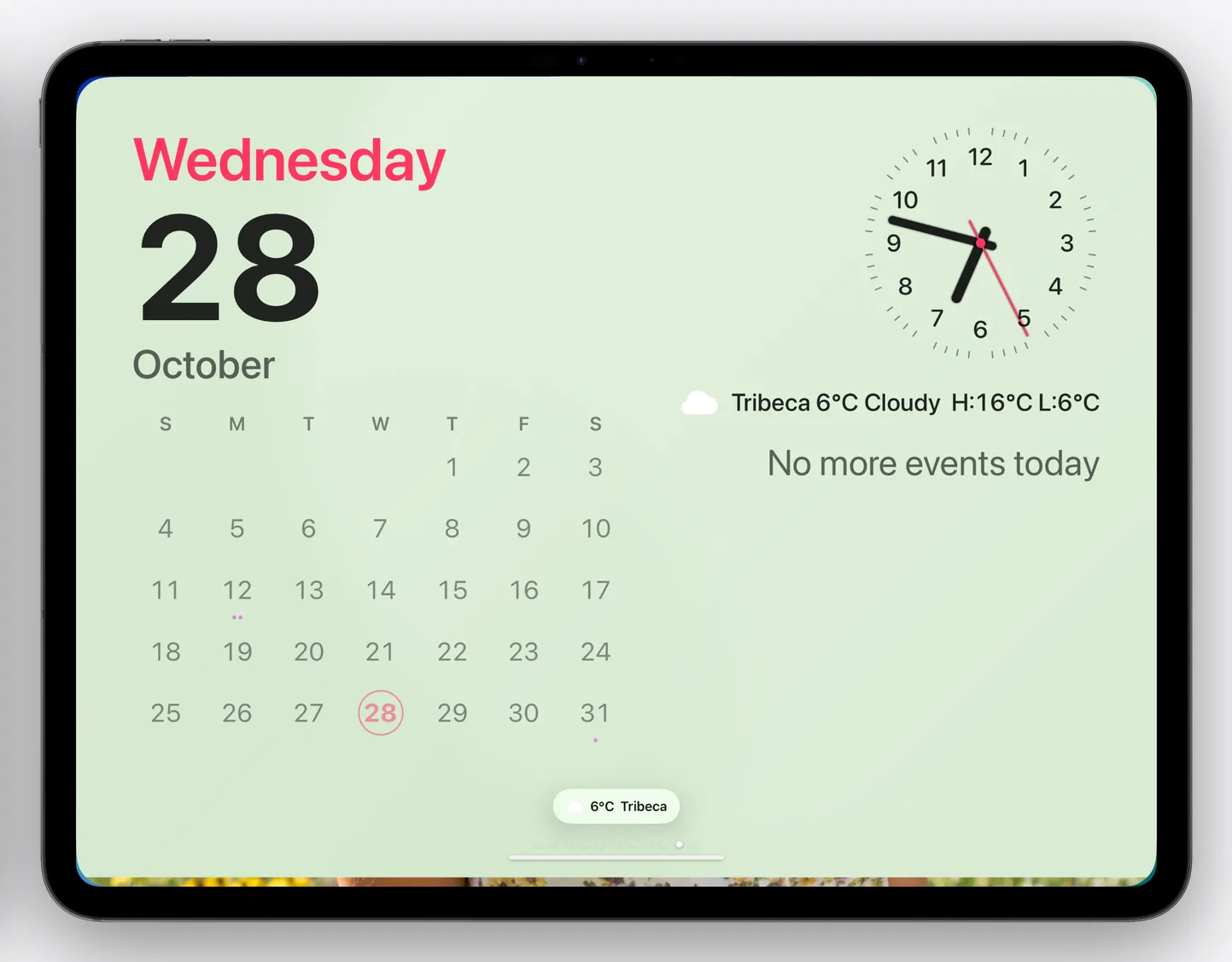
Faces for the day ahead.
The Weather face and the Calendar face bring the forecast and today's plan to the wall, big enough to read from the doorway.
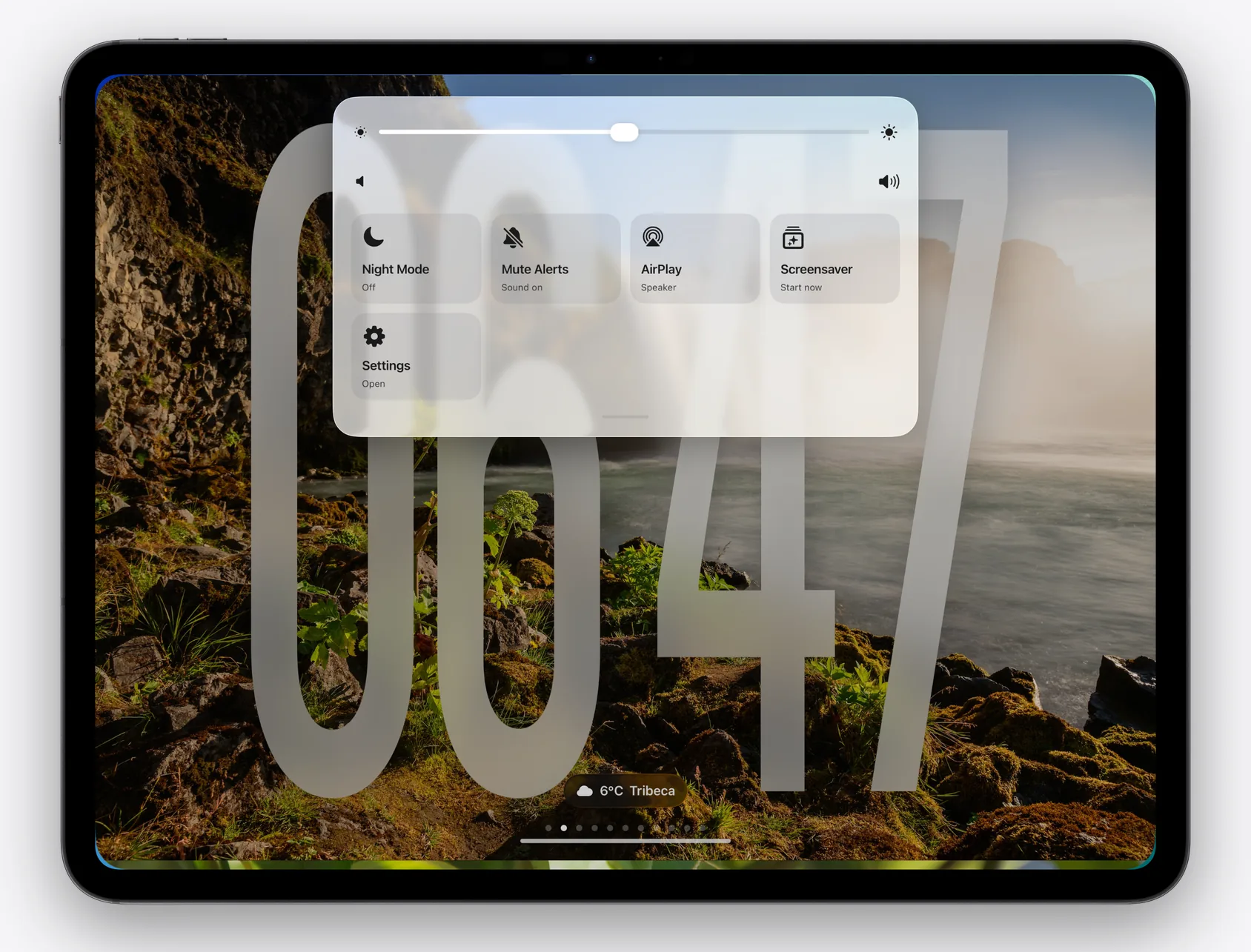
Swipe down. Everything at hand.
Brightness, volume, AirPlay, Night Mode and Mute, one swipe from the top of any face. Lock Settings behind Face ID or your passcode so guests can look but not change.
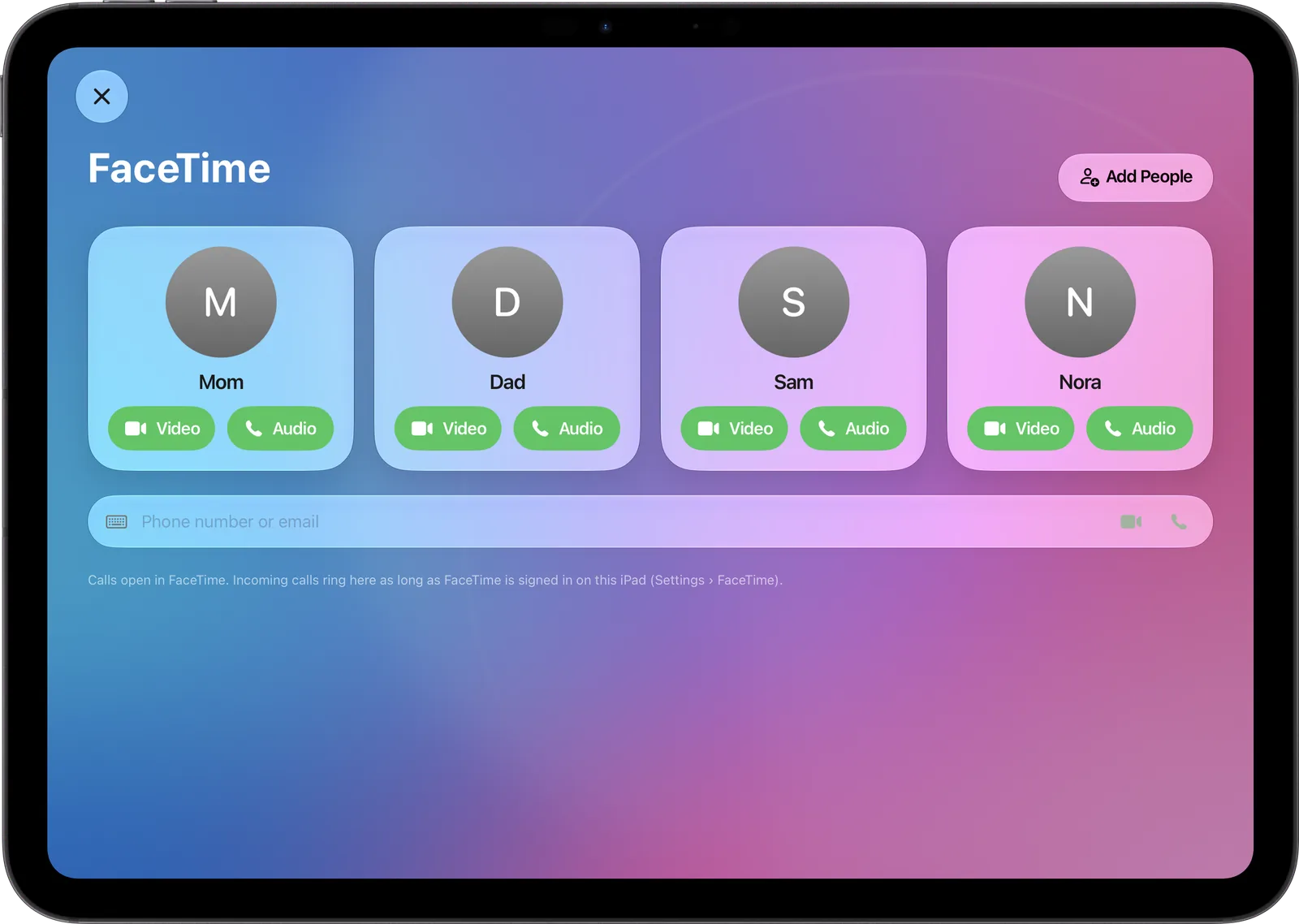
Family is one tap away.
Put the people you call most on the wall. One tap starts a FaceTime video or audio call, and the Contacts tile keeps everyone's number at hand.
Everyday
Help all over the house.
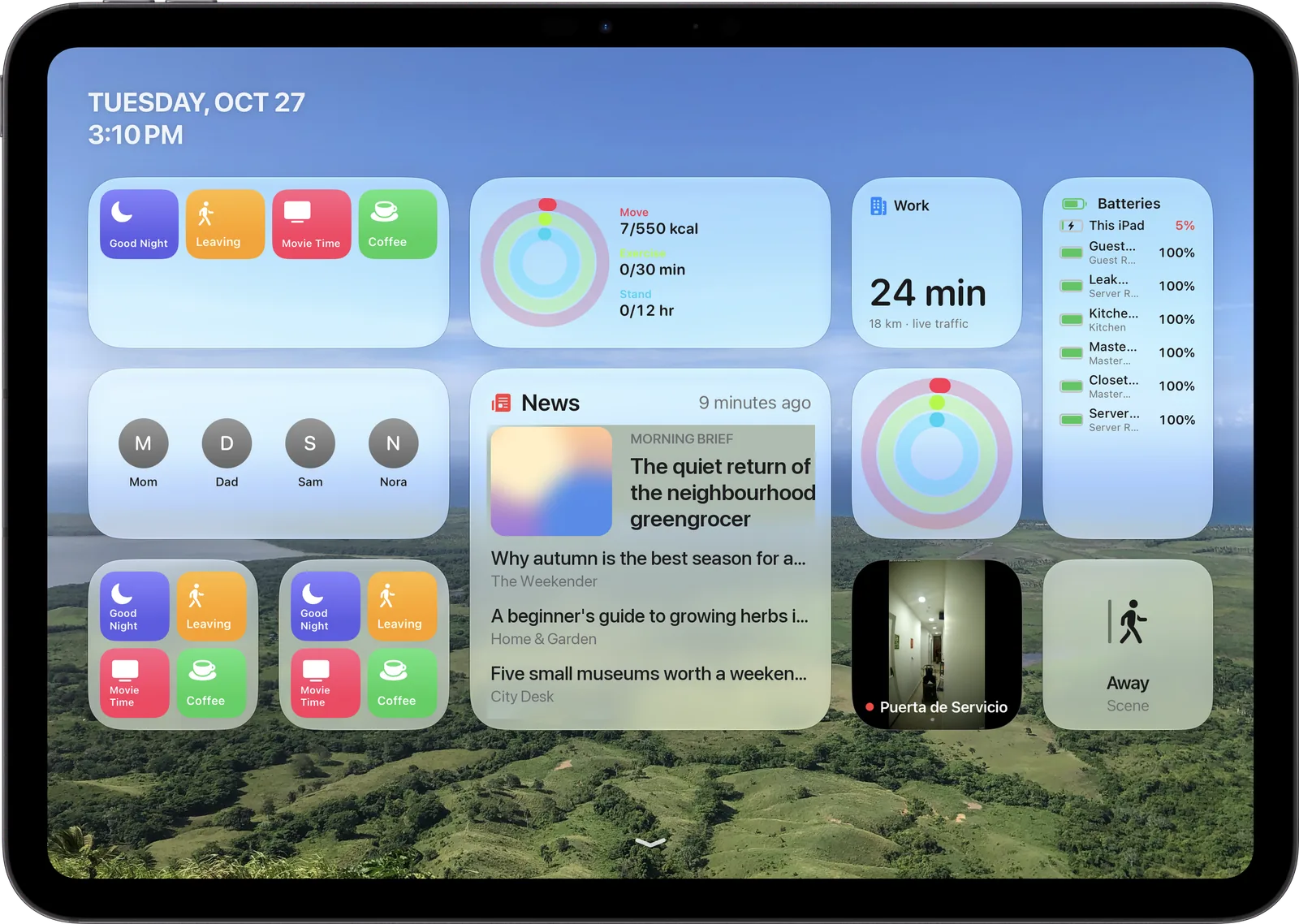
Behind every face sits a Home Screen of widgets and apps for the whole family.
- Glanceable widgetsFitness rings, commute time with live traffic, news headlines from feeds you choose, and the battery of every device.
- FamilyFaceTime and Contacts tiles for the people you call most. Shortcuts for the routines you run most.
- Little helpersTimers for the kitchen, alarms for the bedroom, a world clock for the office, weather and calendar for the hallway.
Easy on the eyes at night.
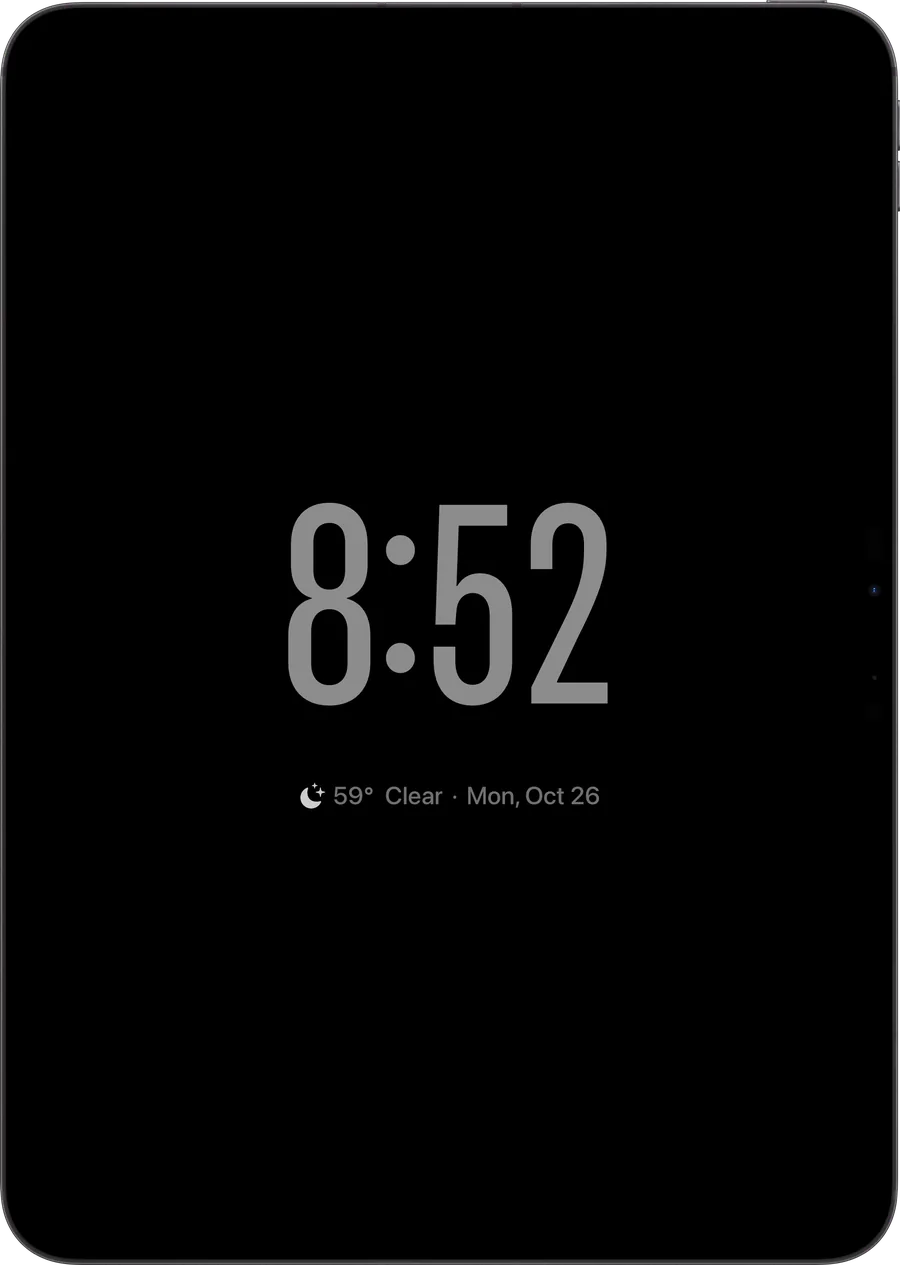
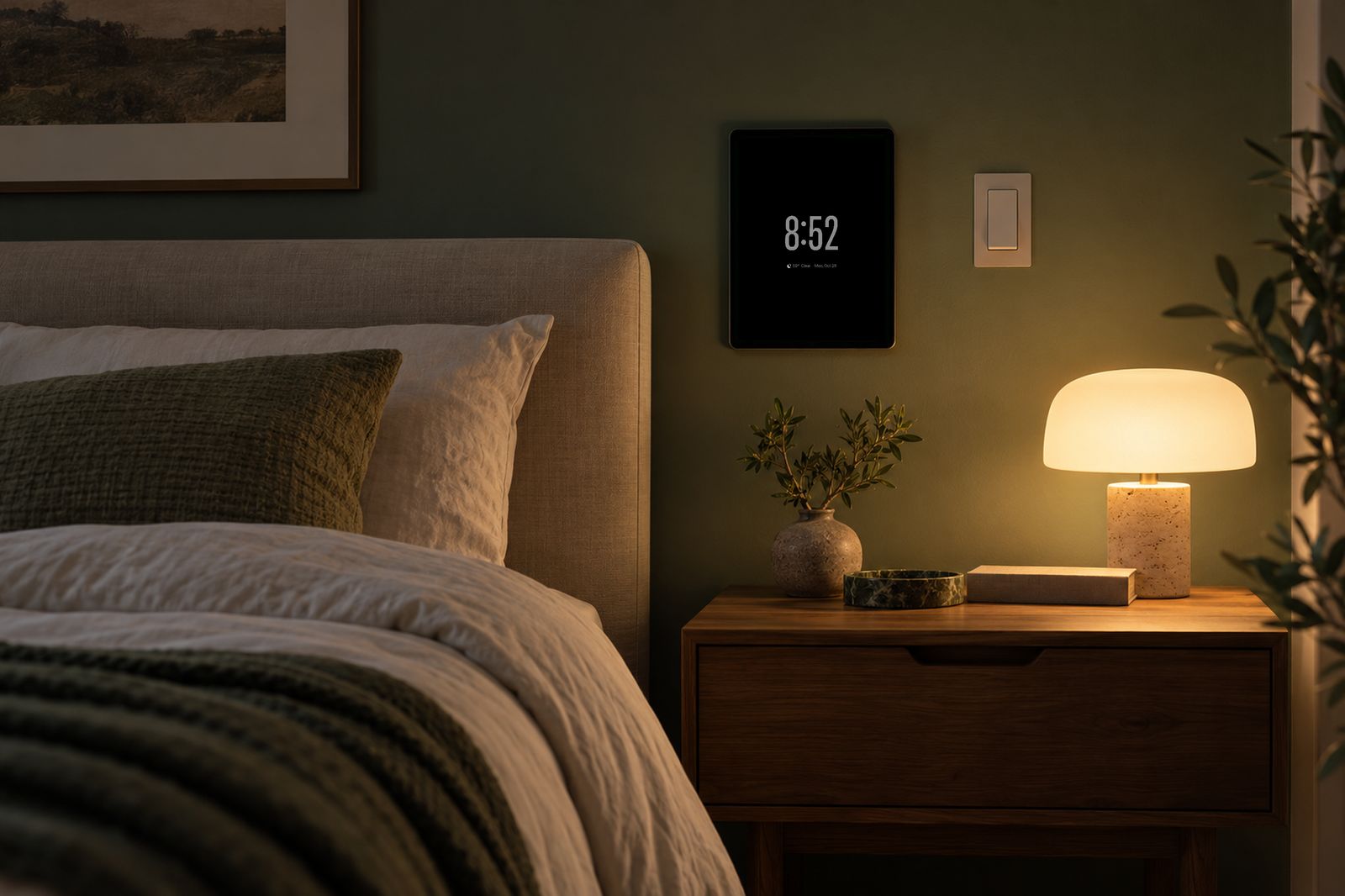
Faces dim after dark and the screensaver takes over when nobody is around. A tap brings everything back. Alarms and timers still ring.
At home in any room.
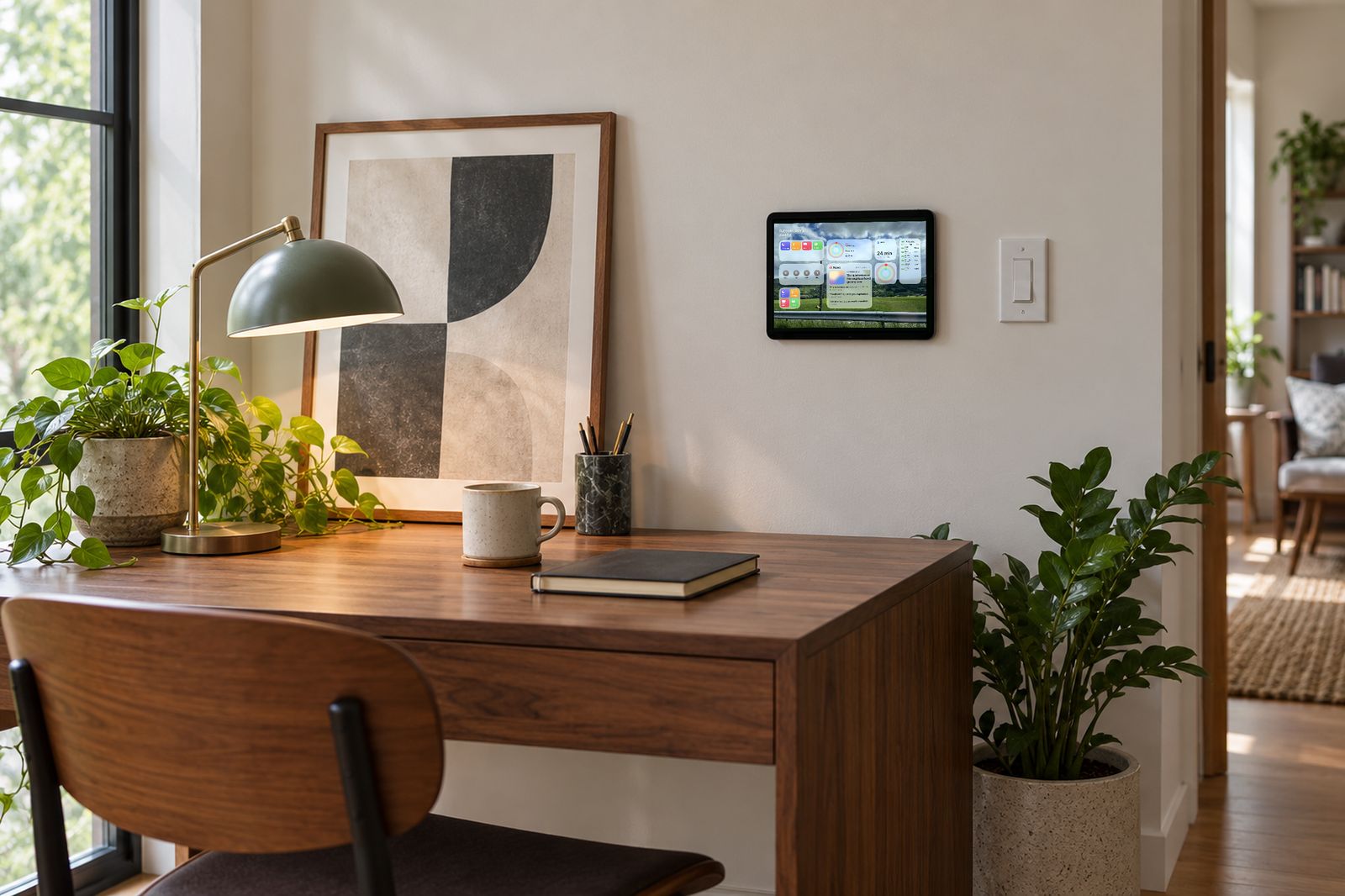
An old iPad, a wall mount and a power cable. That is the whole installation.
Speaks your language.
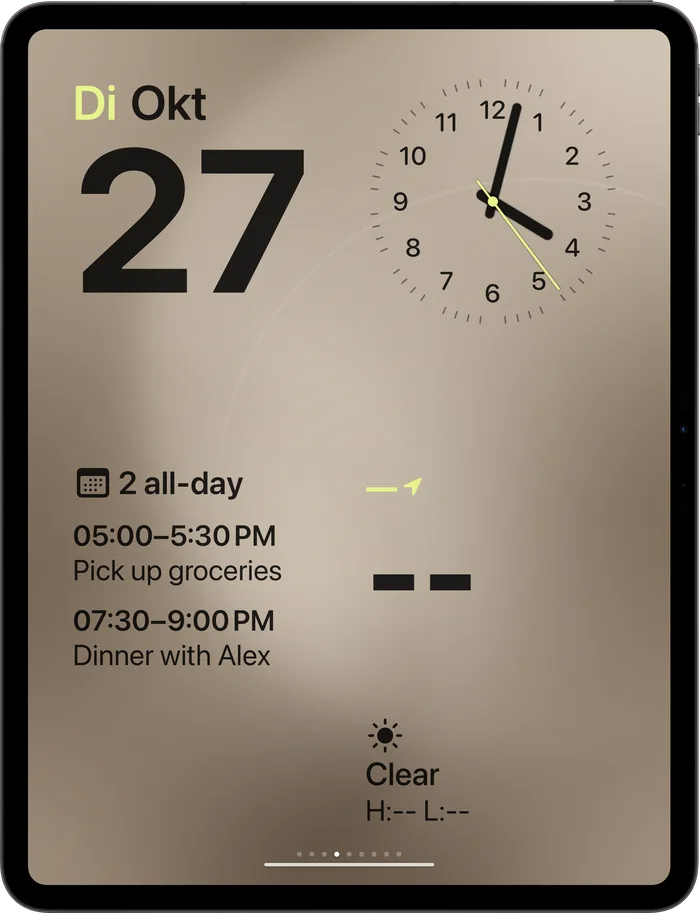
English, Deutsch, Français, Español, Italiano, Português, 日本語, 한국어, 简体中文 and Русский. Follows the iPad's language, or pick one in Settings.
Privacy
Private by design.
WallGlass runs entirely on your iPad. Nothing is sent to the developer.
0 servers
Your home, calendar, photos and health data are read on the iPad and go nowhere else.
0 accounts
No sign-up, no login, no e-mail. Install and start.
0 analytics
No tracking, no crash reporters, no ads. Purchases are handled by Apple.
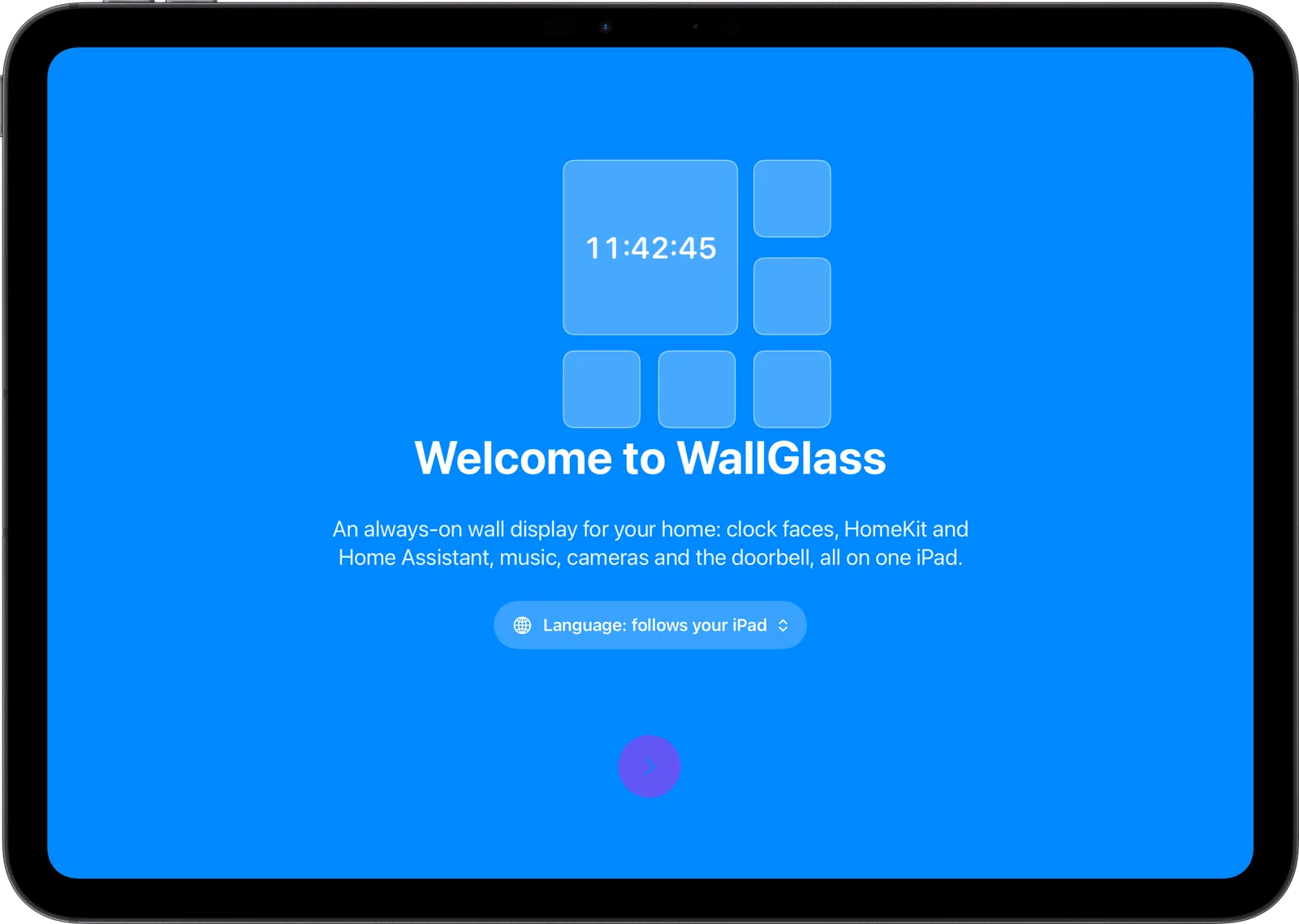
Set up in minutes.
A short tour explains every permission before iPadOS asks for it. Allow what you want, skip what you don't. Nothing is required to start.
WallGlass Pro.
The first face and your HomeKit home are free. Pro unlocks the rest.
- Every clock face without the Pro watermark
- Up to three Home Assistant dashboards
- Unlimited music playback on the wall
- AirPlay to a default speaker
- Album wallpapers that cycle through your photos
Prices in US dollars; local pricing in the App Store. Subscriptions renew unless cancelled 24 hours before the period ends.
WallGlass Pro
Free or Pro.
Start free. Upgrade when you want every face and every dashboard.
| What you get | Free | Pro |
|---|---|---|
| Clock faces | First face | All eight, no watermark |
| HomeKit home | Included | Included |
| Home Assistant dashboards | One | Up to three |
| Music on the wall | 20 minutes a day | Unlimited |
| Album wallpapers | — | Included |
| Default AirPlay speaker | — | Included |
| Widgets, apps, cameras, doorbell | Included | Included |
| Privacy: no servers, no accounts | Always | Always |
Prices in US dollars; local pricing is shown in the App Store. Subscriptions renew automatically unless cancelled at least 24 hours before the end of the current period, and are managed in your Apple Account settings. See the Terms of Use.
Questions? Answers.
Which iPad do I need?
Any iPad running iPadOS 26 or later. An older iPad you already own is ideal. WallGlass keeps it awake while it is on power.
Do I need an account?
No. There is no sign-up and no login. HomeKit comes from the Apple Account already on the iPad. Home Assistant uses a token you paste in once.
Does it work without HomeKit?
Yes. The clock faces, photos, weather, calendar, timers and Home Assistant dashboards all work on their own.
What do I need for Home Assistant?
Home Assistant 2023.4 or later and a long-lived access token from your profile page. WallGlass finds the server on your network, or you type the URL.
What does Pro cost?
$0.99 a month or $8.99 a year with a one-week free trial. The first face and your HomeKit home stay free.
How do I mount it?
Any wall mount or stand for your iPad model works. Keep it on power and turn on Keep Awake in Settings. The display dims at night on its own.
Your iPad. On the wall.
WallGlass for iPad. Requires iPadOS 26 or later.